Change one parameter. The model follows.
Parts, pages, nests and the folded 3D view update with it.
ParametrIQ design tools
ParametrIQ CAD has 129 tools: for drawing, editing, dimensioning and measuring, and for the work of each trade it is used in. Each one works the way you'd expect from a CAD program, with one difference: whatever it makes is defined from the points and variables already in the drawing. Change a size later and the lines, curves, fillets, text and dimensions all follow.
Snap modes: how a click becomes a point
Each drawing tool places its points with a snap mode, chosen at the top of Tool Options. A click can use an existing point, or make a new one defined from the points around it. There are twelve:
- Snap: use an existing point, for dot-to-dot drawing.
- Ortho: a new point straight across or straight up from one that is already there.
- Angle: a new point at a distance and an angle from another.
- Tween: a new point part of the way between two others.
- Two Point: a new point taking its X from one point and its Y from another: level with the top of one shape, in line with the side of another.
- Offset X and Y: a new point a distance across and a distance up from another.
- Two Distances: a new point a set distance from each of two others.
- Two Angles: a new point where lines at set angles from two others cross.
- Along an Element: a new point a distance along a line, arc or curve from its nearer end.
- Offset from a Line: a new point a distance along a line and a distance out from it.
- Around a Centre: a point turned round a centre by an angle.
- Mirror: a point reflected in the line through two others.
The cursor also snaps to midpoints, ends, centres, quadrants, intersections, perpendiculars and tangents, making a point defined on the elements there. As you move, a box by the cursor shows the distance or angle it measures. Type a number, or a name and a value such as FLAP=25, and it becomes a variable you can change later. Click without typing, and the box asks for the value, with the measured one filled in.
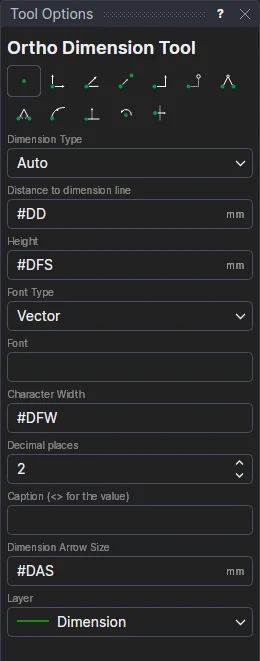
W/4 or #DD.Drawing
Every element is drawn on points, and every point is tied to the drawing's other points.
 Set Point
A point to draw from later: a corner, a centre, a point to measure from.
 Line Segment
A straight line between two points, or a polyline through several.
 Bulge Segment
An arc: by its bulge, through three points, or round a centre.
 Circle
A circle from its centre, by a radius, or through two opposite points.
 Rectangle
A rectangle, corner to corner or from its centre.
 Panel
A flap on a line: two sides and a far edge, the line made its crease, the sides leaning in or out.
 Ellipse
An ellipse or an elliptical arc.
 Polygon
A regular polygon from its centre, with as many sides as you need.
 Bezier
A smooth curve, cubic or quadratic.
 Spline
A curve through many points: cubic spline, Catmull-Rom, Hermite, B-spline or NURBS.
 Offset
Elements copied a distance to one side.
 Text
Text in a single-stroke vector font that can be cut or plotted, or a TrueType font.
 Text to Outlines
Text turned into closed curves, its letters and their holes: for stencils and cut lettering.
 Fill
Hatching, a colour or a gradient filling the area round a point, kept clear of text.
 Raster Image
A picture pinned to four corners, so it moves and stretches with the drawing.
 Trace
Closed curves traced round the colours of a picture, within a tolerance: a logo or a sketch, or a photo as flat patches of colour.
 Barcode / QR code
A barcode or QR code on four corners, its data typed or worked out from variables.
 Vector Import
A DXF, CF2, PDF or other drawing, placed as a picture on four corners.
 Part Import
Another ParametrIQ drawing, placed as a part that takes this drawing's sizes.
 Viewport
In a border drawing, where a sheet shows a page of its drawing.
 Mate
Where a folded part meets another on the 3D page: a lid on its box, a tray in its sleeve.
Editing
Edits add points defined from the elements they work on, so they keep working when the sizes change.
 Select
Choose elements, or points, by clicking or dragging; then move, scale or rotate them.
 Split
Cut elements into equal pieces, at fractions of their length, or at set distances along them.
 Intersect
Add points where elements cross, and split or trim them there.
 Join
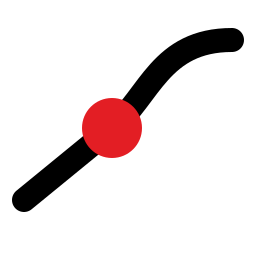
Elements that meet end to end made into one spline.
 Explode
Splines, polylines and curves broken back into their parts.
 Fillet
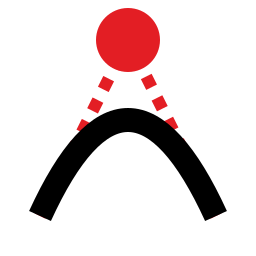
Round a corner with an arc whose radius is a variable.
 Chamfer
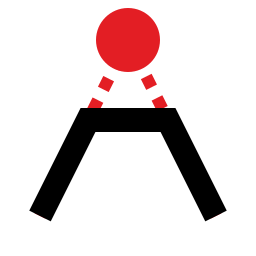
Cut a corner: by two distances, a distance and an angle, or one distance on both sides.
 Transform
Move, rotate, scale or mirror, or make a copy as you do.
 Array
Copies in columns and rows, or round a centre.
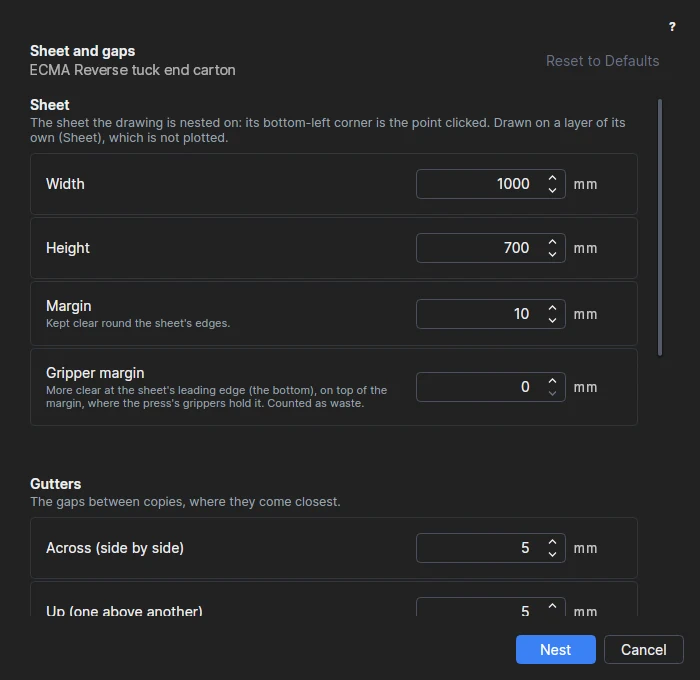
 Nest
The drawing laid out on a sheet as many times as it fits, parametrically.
Dimensions and notes
Dimensions are drawn on points too, so they always show the drawing's current sizes.
 Ortho Dimension
Horizontal or vertical distances.
 Parallel Dimension
Distances straight between two points, or at right angles to a line.
 Angular Dimension
Angles between lines.
 Radius Dimension
The radius of a circle or arc.
 Diameter Dimension
The diameter of a circle or arc.
 Ordinate Dimension
Distances across or up from an origin.
 Callout
A note in a box, with a leader to what it is about.
 Magnifier
Part of the drawing shown larger, in a callout of its own.
Inquiry
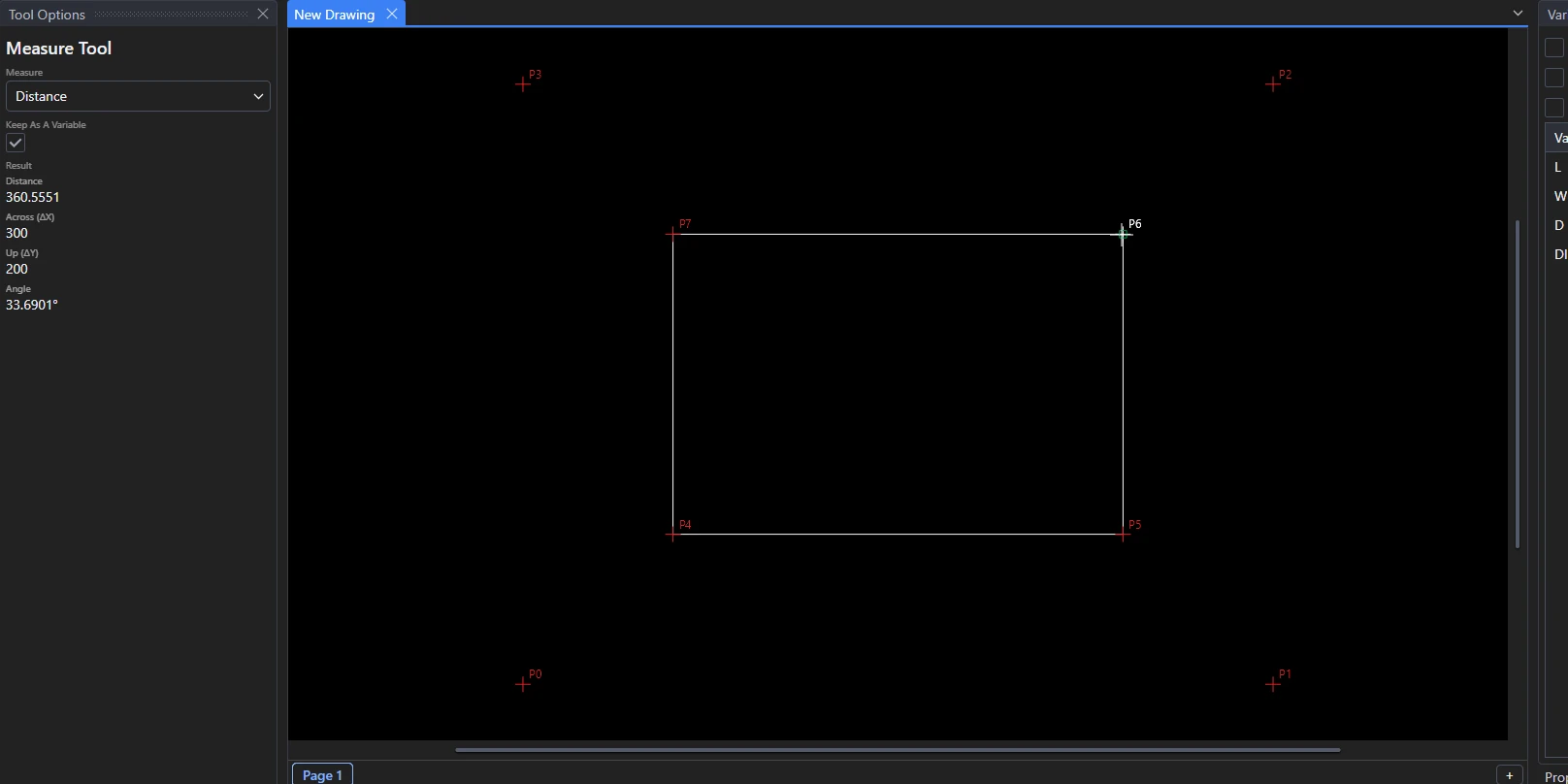
Find out about the drawing without changing it, and keep what you find as variables.
 Measure
Distances, angles and lengths.
 Area
The area and perimeter of closed shapes.
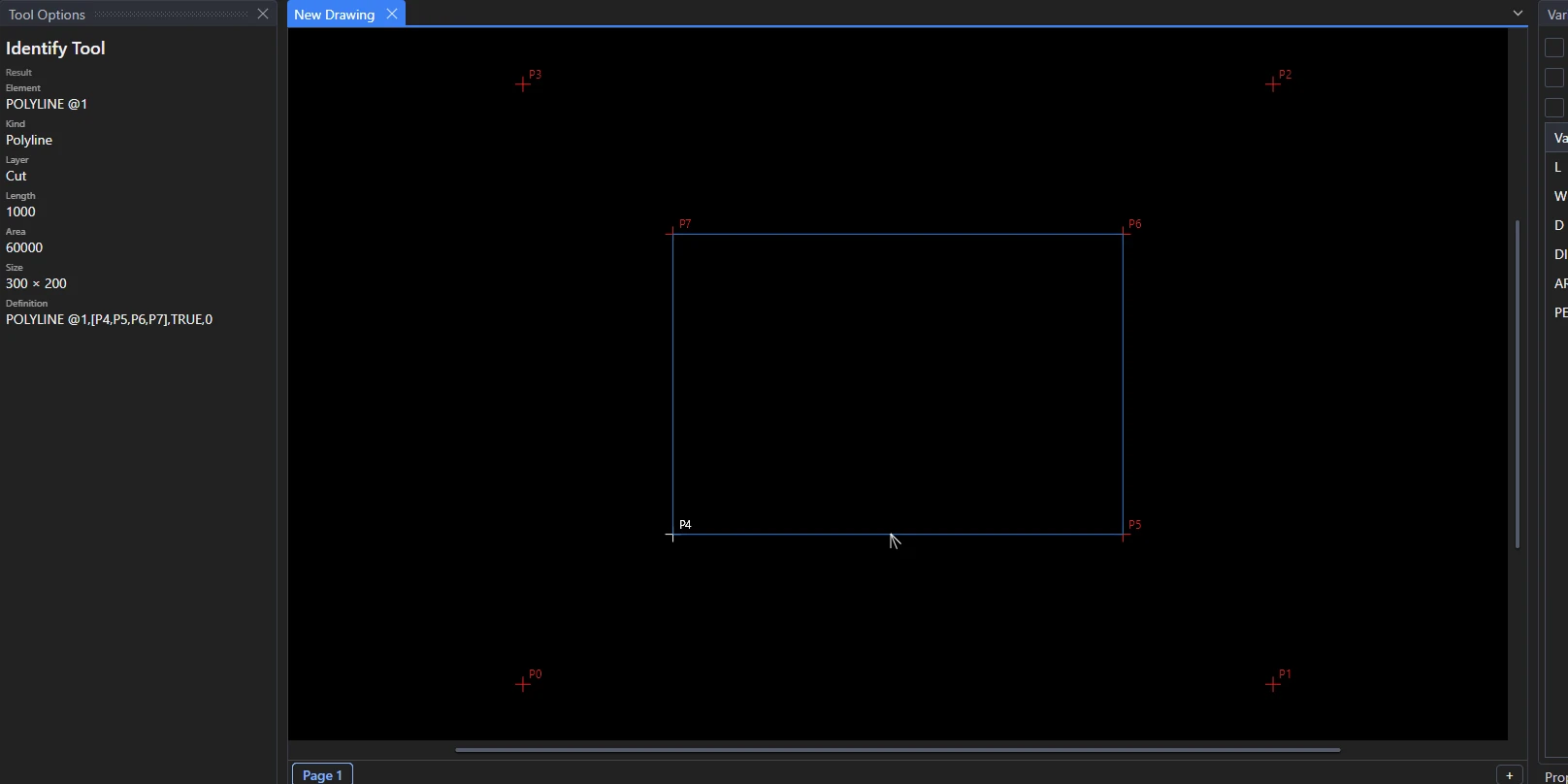
 Identify
What an element or point is, and how it is defined.
Tools for each trade
A drawing is offered its own industry's tools beside the ones above, in the toolbar and in Edit › Tool; Edit › Tool › Show All Tools offers every one. They are parametric like the rest: their sizes are variables, and what they draw follows the points you picked. Industries and tool sets lists each trade's tools and designs.
 Holes
A drilled hole, a pattern of holes in a row, grid or bolt circle, or a sign's fixing holes.
Drill Hole · Hole Pattern · Fixing Holes
 Bridge or Tab
A die bridge left in the rule, or a tab: a small gap in a laser or knife cut that holds the part in the sheet.
Bridge · Tab
 Notch
A V, U, square or slit notch on an edge: carton and gasket notches, glass and stone fitting notches, sewing notches.
Edge Notch · Fitting Notch · Notch
 Allowance
An offset of an outline: a seam allowance, a glass or stone edge allowance, a routing inset or a mount's V-groove.
Seam Allowance · Edge Allowance · Routing Inset · V-Groove
 Weeding
A weed border round a vinyl design, or weed lines that split the waste into strips.
Weed Border · Weed Lines
 Segmented Bend
A pipe's lobster-back mitre template, or all the gores of a segmented duct elbow laid out to cut.
Mitre Segment · Elbow Gores
 Pocket
A pocket in a foam insert: a plain shape, or a shadow pocket round an item's outline.
Pocket · Shadow Pocket
 Mount Aperture
A mount's window, rectangular or oval, single or in rows and columns, with its bevel.
Mount Aperture · Multi-Aperture Mount
 Flap or Seam
A carton's glue flap, or a sheet-metal or duct seam and hem along an edge.
Glue Flap · Seam and Hem
Production
Registration marks and drill holes for every trade, and the die-maker's bridges, notches and tear strips.
 Registration Mark
Dots, rings or targets for a cutter's camera or the printer, where clicked or round the design.
 Tear Strip
Two perforations side by side between two points, a strip apart.
Packaging
Flaps, windows and lock tabs added to a carton's panels on the edges you click, and creases moved for the board's thickness.
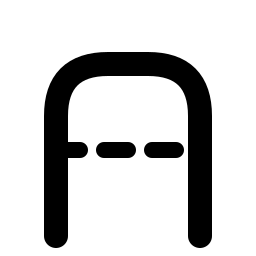 Tuck Flap
A tuck flap on a lid's edge: shoulders, rounded corners and lock slits.
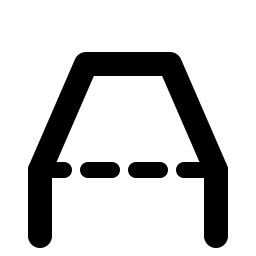 Dust Flap
A dust flap on an edge, its sides leaning in.
 Window with Patch
A window, and the outline of the film patch glued over it.
 Lock Tab and Slot
A locking tab on a flap's edge, its shoulders and rounded head, and its slot in the panel it locks into.
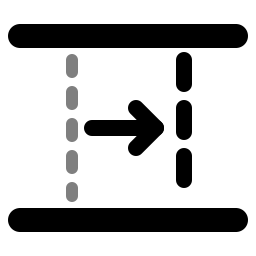 Crease Offset
A crease moved square to itself by a number of board thicknesses, on the old one's ends.
 Curved Bend
A panel that bends along its length into a curve, scored with parallel lines or bent smoothly, and folded as a curve in 3D.
Sheet metal, HVAC, pipework, structural steel and gaskets
Flat patterns with their bends allowed for, pipe and duct templates developed flat, and holes, slots and plates measured from their edges.
 Flat Pattern
The flat blank of a bent part from its flanges' sizes, with its bend lines.
 Bend Line
A bend line with a note of its angle and bend allowance or deduction.
 Corner Relief
A round, square or tear-drop relief where two bends meet.
 Slot
A slotted hole: between two points, or round a centre at a length and angle.
 Louver
A row of louvers: their lances and forming outlines.
 Gusset Plate
A gusset or stiffener plate in a corner, sniped, its toes cut square.
 Base Plate
A column base plate with its bolt holes and a grout hole.
 Part Mark
Numbered part marks, to etch rather than cut.
 Beam Cope
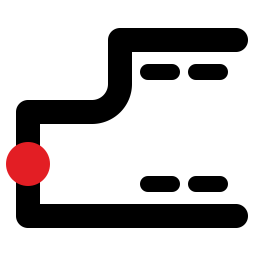
A cope cut in a beam's end, top, bottom or both, its inside corner rounded.
 Weld Preparation
The bevel line and a label marked on an edge to be bevelled for a butt weld.
 Weld Number
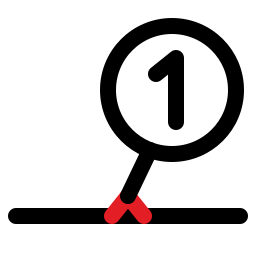
Numbers each weld on the drawing, shop or field, with its type, size and WPS, for the weld map report.
 Pipe Saddle
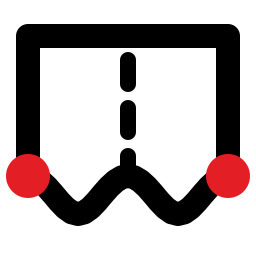
The wrap-round cutting template of a branch pipe meeting a main pipe.
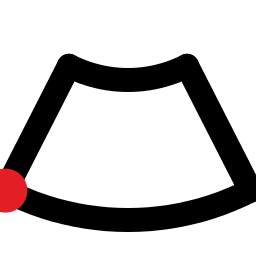 Reducer
A concentric or eccentric reducer developed flat.
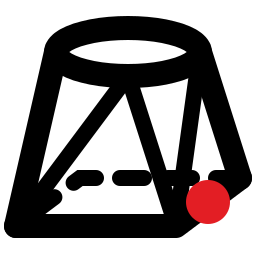 Rectangle to Round
A rectangle-to-round transition developed flat by triangulation, concentric or offset, with its bends.
 Gasket Ring
A flat gasket: typed sizes, or an EN 1092-1 or ASME B16.5 flange size.
Laser cutting and carpentry
Joints cut or marked on the parts, and what holds a part in the sheet while it is cut.
 Lead
A lead-in and lead-out in the waste, where a closed cut starts and ends.
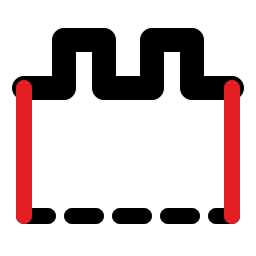 Finger Joint
An edge cut into box-joint fingers and slots.
 Living Hinge
Staggered slots that let a band of sheet bend.
 Mortise and Tenon
A tenon on an edge and the mortise it goes into.
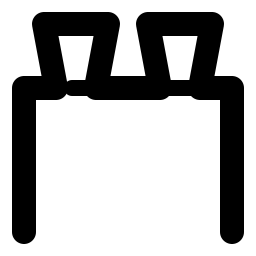 Dovetail
s (tails or pins) along a board's end.
 Housing
 (dado) and rebate marks parallel to an edge.
 Hinge Bore
Cup hinge bores (35 mm) with their fixing holes along a door's edge.
Sewing and leather goods
The marks a pattern piece carries: allowances, notches, grain lines, darts, pleats, stitching, skives and labels.
 Grain Line
A grain line arrow, parallel to an edge if you like.
 Dart
A dart from a point on an edge.
 Pleat
Knife and inverted box pleat marks.
 Buttonhole
s, or buttons' places, along a line.
 Stitch Line
Stitch holes, slits or marks along an edge, evenly spaced to fit it.
 Skive
The band along an edge to skive, with a note of its width.
 Fold Line
A fold, with the band skived either side of it.
 Piece Label
A piece's name, how many to cut and the material, by a grain arrow.
Sign making and vinyl cutting
Sign panels' holes and borders, lettering to cut, and vinyl ready to weed and apply.
 Outline Text
Lettering cut as its outlines.
 Stencil Bridges
Bridges holding a stencil letter's islands.
 HTV Mirror
A mirrored copy for heat-transfer vinyl.
 Contour Cut
A cut round a printed design, a distance out, for print-and-cut.
 Tiling
A design larger than the roll split into overlapping panels.
 Colour Separation
The same registration marks on every colour's layer.
Picture framing
Mounts with their windows, and frames from their moulding.
Carpets and flooring
A room from its walls, the carpet off the roll to cover it, and rugs, stairs and inlays.
 Room Outline
A room from its wall lengths and turns.
 Roll Layout
Carpet or underlay drops, their seams, the roll length and the waste.
 Pile Arrow
The way the pile runs.
 Doorway
A threshold cut-out on a room's wall.
 Stair
A stair runner with its folds, or tread and riser pieces.
 Rug Border
A rug's border and binding lines.
 Carpet Inlay
An inlay piece to match a cut in the field, an allowance larger.
Labels
A label die laid out to its cylinder, and the liner slits that help the labels peel.
 Label Layout
Labels across the web and round the die cylinder's repeat.
 Liner Slit
A backing slit through the liner: straight, zigzag or wave.
Foam and inserts
Inserts built up from sheets, with pockets for the items they hold.

Glass, stone and tile
Panels and slabs with their edge work, notches, corners and cut-outs, and tiles set out over a wall or floor.
 Corners
A panel's corners rounded, clipped (dubbed) or notched.
 Cut-Out
A sink, hob or socket cut-out, or a tap hole, set back from an edge.
 Tile Setting-Out
Whole and cut tiles over an area, counted.
 Drainer Grooves
A draining board's grooves.
 Water-Jet Inlay
An inlay's piece and its opening, with a fit clearance.
 Edge Profile
Marks a worktop's finished edges with their profile, from polished to ogee or waterfall, for the stone quote.
 Slab Photo
Squares a photo of a slab to its true size from its four corners, so the pieces can be laid out over its veins.
Tools that tell you what they found
Mouse or keyboard, it's the same drawing
Everything a tool does is written down as a command in PiQ Lang, the language the drawing is saved in. You can see it in the Interactive window, type it yourself, and put it in loops, conditions and functions. A drawing made with the tools can be run as a parametric design, asked for its sizes, and made through the PiQ SaaS API.
Every tool, in detail
The help has a page for each tool: its settings, how to use it, and how it stays parametric.