Parallel Dimension Tool
Use the Parallel Dimension Tool to dimension a distance with the dimension line parallel to what it measures. The dimension follows its points when they move.
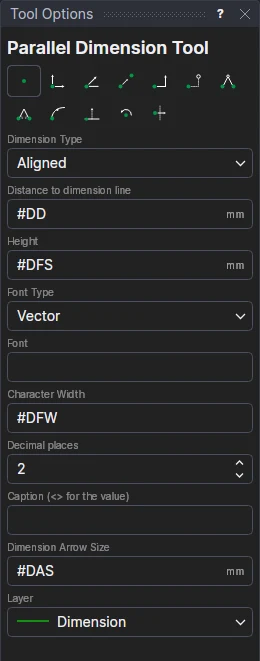
Usage
- Choose the dimension type:
- Aligned: the straight distance between two points.
- Perpendicular: the distance from a point, square to a line.
- Set the dimension's options if you need to. Each starts as the drawing's
dimension setting variable: a dimension made with an option left so keeps to the
variable, and changes when it does; change an option here for the dimension to have its own.
- Height: the height of the capital letters, an expression:
#DFS(Dimension Font Size) to begin with. - Dimension Arrow Size: an expression:
#DASto begin with (0 for no arrows). - Distance to dimension line (Aligned only): how far out the dimension line goes, an expression:
#DDto begin with. - Font Type and Font: a vector font (an .shx file, or empty for the built-in font) or a TrueType font
(an installed family, or a .ttf or .otf file),
#DFKand#DFNto begin with. TrueType fonts can also be Bold and Italic (#DFB,#DFI). - Character Width: how wide the letters are, an expression:
#DFW(1, normal) to begin with. - Decimal places: the most shown (
#DDP: 2 in millimetres, 3 in inches). Trailing zeros are left off. - Caption (<> for the value): text instead of the measurement, with
<>standing for it (for example<> TYP). Leave it empty to show the measurement. It has no variable.
- Height: the height of the capital letters, an expression:
- Choose the layer to draw the dimension on. It starts as the Dimension layer, if the drawing has one.
- For an Aligned dimension:
- Click* the first point to measure.
- Click* the second point to measure.
- Click on the side the dimension goes. Only the side is kept: the dimension line is Distance to dimension
line out (by default the drawing's
#DD), so it stays that far out when the points move.
- For a Perpendicular dimension:
- Click* the start of the line.
- Click* the end of the line.
- Click* the point to measure from the line.
- Click* where the dimension line goes.
The dimension is shown as you move, before the last click.
*Depending on the chosen snap mode, several clicks may be required to define the point parametrically. Read more about Snap Modes