Bulge Segment Tool
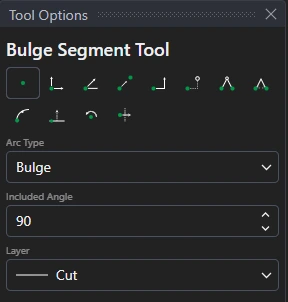
Use the Bulge Segment Tool to draw a circular arc. Choose how with Arc Type:
| Arc Type | Click | The arc |
|---|---|---|
| Bulge | Start, end, then the side | Bulges to the side clicked by its Included Angle: how far round the circle it goes (90° a quarter circle, 180° a half). It keeps that angle when its ends move, so it stays the same shape, larger or smaller. |
| Three points | Start, a point it passes through, end | Always passes through all three: its centre, size and direction are worked out from them whenever they move. |
| Centre, start and end | Centre, start, then where it ends | Runs round the centre from the start, Anticlockwise or (unticked) clockwise, until it reaches the line from the centre to the end point. Its radius is the distance from the centre to the start. |
Usage
- Choose the Arc Type and its setting, and the layer to draw on.
- Click* the points in the order shown above. The arc is shown as you move.
For Bulge, the last click only chooses the side: it doesn't make a point. Every other point is an existing point or one defined relative to one, so nothing about the arc is fixed in space.
*Depending on the chosen snap mode, several clicks may be required to define the point parametrically. Read more about Snap Modes