Holes Tool
Use the Holes Tool to put holes in a part: a hole wherever you click, a pattern of holes (a bolt circle, a row or a grid), or fixing holes in from a sign's outline. Each trade's own tool is one Kind of it, and the toolbar button has its name: Drill Hole for most trades, Hole Pattern for sheet metal, structural steel, pipework, HVAC, gaskets, laser cutting, glass and stone, Fixing Holes for sign making.
Which kind for which trade
| Kind | The trade's own tool | A drawing for |
|---|---|---|
| Drill holes | Drill Hole Tool | every industry not listed below, and a General drawing |
| Hole pattern | Hole Pattern Tool | sheet metal, structural steel, gaskets, pipework, HVAC, laser cutting, glass, stone and tile |
| Fixing holes | Fixing Holes Tool | sign making, laser cutting |
A drawing for one industry starts with its trade's kind, and the toolbar button has that kind's name; a General drawing (or Show All Tools) shows the button as the Holes tool. The kind you choose stays chosen for that drawing until you choose another. The Tool menu still lists each trade's tool by its own name. Each kind makes what its trade's tool always has made: the same lines, layers and variables.
Drill holes and fixing holes go on the Drill layer, which G-code and the post-processors drill; a hole pattern goes on the layer you choose (the current layer to start with: the cut, for a laser or a punch).
Drill Hole Tool
Use the Drill Hole Tool to put drill holes on points: a hole at each point you click. Each hole is a circle on the
Drill layer (added if the drawing hasn't one), a layer whose elements are drilled (TOOL DRILL=TRUE): G-code and
the post-processors drill a hole at each circle's centre, the circle's size. It is a tool for every industry.
Usage
- Fill in the Drill hole diameter.
- Click* where each hole goes: a point, a corner, the centre of an arc, or anywhere.
The diameter becomes a variable (DRL1) that the next holes share, so changing it resizes them all; each hole is defined on its point, so it moves with it. Type a number again for holes of another size.
For holes in a pattern (round a bolt circle, in rows), use the Hole Pattern Tool. The Drill layer's own machining settings (depth, feed, peck) are set in Production › Tool Options.
*Depending on the chosen snap mode, several clicks may be required to define the point parametrically. Read more about Snap Modes
See also: Element settings, G-code, Registration Mark Tool.
Hole Pattern Tool
Use the Hole Pattern Tool to draw a pattern of holes: a bolt circle (holes evenly round a pitch circle, as on a flange or a base plate), a row of holes along an edge, or a grid of them. Each hole is a circle. It is a tool of the sheet metal, structural steel, gaskets, pipework, HVAC and laser cutting trades.
Bolt circle
- Choose Bolt circle (PCD) as the Pattern.
- Fill in the Pitch Circle Diameter (the circle the holes' centres lie on), the number of Holes, the First Hole Angle (degrees anticlockwise from the X axis: the others follow evenly round) and the Hole Diameter.
- Choose the layer to draw on.
- Click* the centre. The holes are shown round the pointer as you move.
A flange's holes usually straddle the centre lines: for 4 holes, a first hole angle of 45; for 8, 22.5.
Row and grid
A row or grid is measured from an edge (a plate's side, say): along it from its start, and across it.
- Choose Row or Grid as the Pattern.
- Fill in the Holes in a Row, the Pitch (from one hole's centre to the next along a row), the Edge Distance (along the edge, from its start to the first hole), the Gauge (across, from the edge to the first row) and the Hole Diameter; for a grid, the number of Rows and the Row Pitch between them.
- Choose the layer to draw on.
- Click* the start of the edge (a plate's corner, say).
- Click* a point along the edge (its other corner).
- Click* a point on the side of the edge the holes go (anywhere on that side). The holes are shown as you move.
It follows the drawing
Each size you typed is kept in a new labelled variable: PCD1, HOLES1, HOLEA1 and HOLED1 for a
bolt circle; HOLES1, PITCH1, EDGE1, GAUGE1 and HOLED1 (and ROWS1, ROWP1) for a row or grid. Change one
and the pattern changes: even the number of holes. A size typed as one of the drawing's own variables (BOLTS,
2*T …) is used as it is.
The pattern is a FOR block written on the points you marked, so it follows them: move the centre, or the edge's points, and the holes move and turn with them. Nothing is fixed in space. Because the holes are made by the block, they can't be picked one at a time.
To drill the holes rather than cut them, draw them on a layer whose tool settings drill (see Layers).
*Depending on the chosen snap mode, several clicks may be required to define the point parametrically. Read more about Snap Modes
Fixing Holes Tool
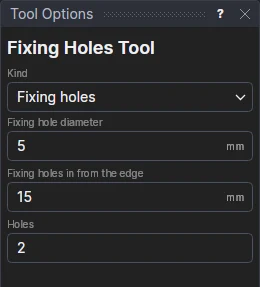
Use the Fixing Holes Tool to put the fixing holes in a sign panel, a plaque or a backing plate: holes for screws, stand-off fixings or rivets, a set distance in from the edges.
Usage
- Fill in the Fixing hole diameter and Fixing holes in from the edge (to the holes' centres).
- Fill in the Holes. On a straight-sided panel (a rectangle, its corners square, cut or rounded; a shaped panel) it is the holes along each side, the corners' included: 2 puts a hole in each corner, 3 one in each corner and one in the middle of each side, and 1 one in the middle of each side and none in the corners. Round a circle, an oval or any other curved shape, it is the holes in all, evenly round it.
- Click the panel's outline: the holes are shown on it as the pointer moves over it.
The holes are circles on the Drill layer (added if the drawing hasn't one), which G-code and the post-processors drill (see Drill Hole Tool).
Holes that follow the sign
The holes are a block on the panel's corners (or on the shape itself) and the sizes: resize the panel or move a corner and the holes keep their distance from the edges. The sizes are kept in new variables (FIXD1, FIXIN1, FIXN1), and the boxes then show them, so the next signs you make share them: change one and every signs changes. Type a number in a box to start a new variable.
See also: Routing Inset Tool, Hole Pattern Tool, Sign making.