Tuck Flap Tool
Use the Tuck Flap Tool to add a tuck flap on a carton's lid: the lid's far edge becomes the tuck's fold, the tuck reaches out the depth with its two far corners rounded, and lock slits can be cut back into the lid for the dust flaps to lock in. It is a tool of the packaging trade.
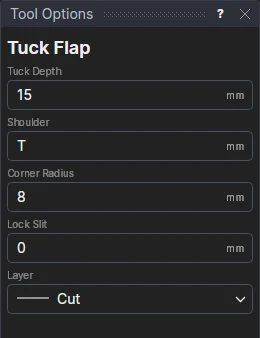
Usage
- Fill in the Tuck Depth: how far the tuck reaches beyond its fold (about 15 mm on a folding carton).
- Fill in the Shoulder: how far the tuck's fold is in from each end of the edge, so the tuck slides in past the carton's sides. It starts at the board's thickness T, if the drawing has that variable.
- Fill in the Corner Radius of the tuck's two far corners (0 for square corners).
- Fill in the Lock Slit: the length of a slit cut back into the lid from each end of the tuck's fold (a friction lock: the dust flaps' shoulders catch in it). 0 cuts none.
- Choose the layer to cut on (the Cut layer, to start with).
- Click the lid's edge, on the side the tuck goes. It must be a straight line (a line segment).
What it draws
The edge is kept on the Construction layer, and in its place are drawn the tuck's fold on the Crease layer (if the drawing has one), the shoulders (cut along the edge from its ends to the fold's), the tuck's sides, rounded corners and far edge, and the lock slits, on the layer chosen.
It follows the drawing
The depth, shoulder, radius and slit length are kept in new labelled variables (TFD1, TFS1, TFR1, TFL1); the tuck is drawn by a block on the edge's two ends, so it follows them and the variables. A radius too big for the tuck is made as big as fits.