Tile Setting-Out Tool
Use the Tile Setting-Out Tool to set out tiles over a wall or floor: whole tiles and cut ones, with the joints between them, in stack or brick bond, from a point of your own or from the middle so the cuts at either side match. How many whole and cut tiles there are, and the narrowest cut, is said when it is made.
Usage
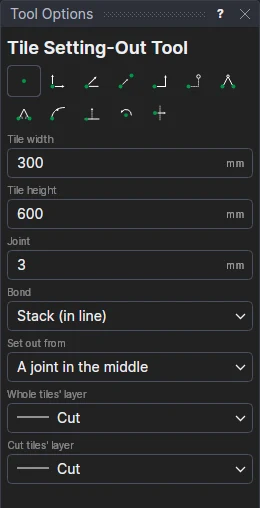
- Fill in the Tile width, Tile height and Joint.
- Choose the Bond: Stack (in line), or each row moved along by half a tile (Half bond (brick)), a third or a quarter.
- Choose where to Set out from: A joint in the middle (the cuts at the two sides the same), A tile in the middle, or A point of your own (where a tile's corner goes).
- Choose the Whole tiles' layer (the Dimension layer, by default) and the Cut tiles' layer (the cut layer: the tiles to cut, on a water-jet or a saw).
- Click* a corner of the area, then the opposite corner; then, setting out from a point, where a tile's corner goes.
Avoid slivers: if the narrowest cut is small, set out from a tile in the middle instead of a joint, or move the setting-out point by half a tile.
The tile size and joint are variables (TLW1, TLH1, TLJ1) and the tiles a block on them and the points: change the tile size, or move a corner, and they are set out again.
*Depending on the chosen snap mode, several clicks may be required to define the point parametrically. Read more about Snap Modes
See also: Stone and Tile.