Mount Aperture Tool
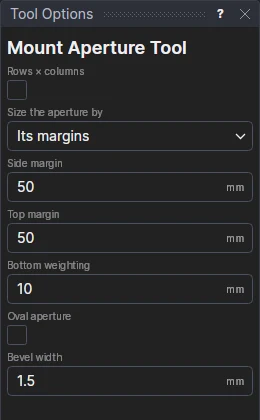
Use the Mount Aperture Tool to cut the aperture (the window) in a picture mount (a mat), square-cornered or oval, with its bevel line. Framers weight the bottom margin, so the picture sits a little above the middle and doesn't look as if it is slipping. Turn on Rows × columns for a mount with several equal apertures (the Multi-Aperture Mount).
Usage
- Draw the mount's outside: a rectangle, the frame's rebate size (the Rectangle Tool).
- Leave Rows × columns off for one aperture.
- Choose how to Size the aperture by:
- Its margins: fill in the Side margin and the Top margin; the bottom margin is the top's and the Bottom weighting.
- The picture's size: fill in the Picture width, Picture height and the Picture overlap (how far the mount covers the picture's edge each side); the aperture is centred across, and above the middle by half the Bottom weighting.
- Turn on Oval aperture for an oval window (a circle, when it is as wide as it is high) that fills the rectangle the margins or the picture give.
- Fill in the Bevel width: how far in from the aperture the bevel meets the back of the board (the board's thickness, for a 45° bevel).
- Click the mount's outside.
The aperture is cut on the mount's layer, and its bevel line - where the bevelled cut comes through the back, the line a mount cutter's blade is set to from the back - goes on the Bevel layer.
An aperture that follows the mount
The aperture's corners (an oval's centre and the ends of its axes) are points on the mount's corners and the sizes, which are kept in new variables (APS1, APT1, APW1; PICW1, PICH1, APO1; BEV1) the next mounts share: change the mount or a size and the aperture follows. A V-groove round it is added with the V-Groove Tool; a double mount is a second aperture a few millimetres bigger in another mount.
Rows × columns: several apertures
Turn on Rows × columns for a mount with several equal apertures in rows and columns: a set of photos, a collection, a team. (The Tool menu's Multi-Aperture starts the tool with it on.)
- Draw the mount's outside: a rectangle, the frame's rebate size.
- Turn on Rows × columns, and fill in the Aperture rows and Aperture columns.
- Fill in the Side margin, the Top margin, the Bottom weighting (how much heavier the bottom margin is) and the Gap between apertures.
- Fill in the Bevel width.
- Turn on V-groove to run a V-groove round each aperture, the V-groove distance outside it.
- Click the mount's outside.
The apertures fill what the margins leave, the gaps between them. Each is cut on the mount's layer, with its bevel line on the Bevel layer and its V-groove on the V-cut layer.
The apertures are a block on the mount's corners and on variables (MAR1, MAC1, APS1, APT1, APW1, MAG1, BEV1, VG1), which the next mounts share: change the number of rows or columns, a margin, or the mount, and the grid is drawn again.
See also: Mitre Frame Tool, Picture framing.
In 3D
A 3D page of a framed picture shows the mount's window bevelled from its line to its bevel line (Wrapping and sweeping).