Checking a Dieline
Production › Check Dieline… checks the page you are working on the way Ask Claude checks a drawing it writes, and shows what it finds in a report, problems first. Nothing in the drawing is changed by the check.
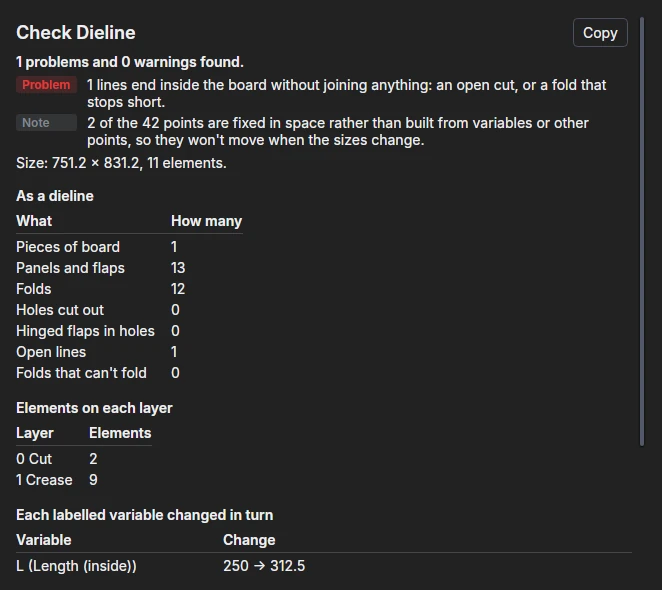
The page is run on its own, as the drawing would open, and then again with each labelled variable changed in turn, so on a large drawing the check can take a moment.
What it looks for
Each finding is a Problem (something wrong), a Warning (something that may be wrong) or a Note (worth knowing), listed in that order.
| Finding | What it means |
|---|---|
| A statement that fails | Something in the drawing can't be worked out (a point that isn't defined, a radius of nothing …): the statement, and why. |
| Draws nothing | Nothing is drawn on the page. |
| Lines that end inside the board | A cut that is left open, or a fold that stops short of the edge or of another line, so the panels don't separate where they should. |
| Folds that can't fold | A fold with the same panel on both sides (it runs into a hole or stops in the middle of a panel). |
| Several pieces of board | The cut lines make more than one blank: if it should be one, its outline or its folds don't join up. |
| Accessories too close | An accessory's holes or slots (a handle's, an eyelet's) come within 5 mm of a fold, the board's edge or another accessory's holes (a warning), or run across them (a problem): they would tear or not line up when it folds. |
| Braille in the wrong place | Braille's dots within 3 mm of a fold or the board's edge (a warning), or across a fold, on a glued area (drawn glue or a side-seam glue flap) or over a window (a problem): they would be crushed, split or lost there. |
| Couldn't be read as a dieline | The cut and crease lines can't be made into panels and folds, and why. |
| Not checked as a dieline | The page has no lines on the Cut and Crease layers, so only the drawing itself is checked. |
| Elements with no length | A line from a point to itself; inside a block, often a name that isn't defined. |
| A variable that stops the drawing working | Changing that labelled variable (a number by a quarter, a toggle turned over, a choice moved on) makes the drawing fail. |
| A variable that changes nothing | Changing it leaves what is drawn as it was: fine if it only changes what is printed, or what an option that is off would draw. |
| Points fixed in space | Points written as numbers rather than built from variables or other points, so they don't move when the sizes change (see Check Parametric). |
| No labelled variables | Nothing to change the drawing by: label its main sizes and options (see Variables). |
The report
Below the findings, the report shows the page's size and number of elements, and tables of:
- the dieline: its pieces of board, panels and flaps, folds, holes cut out, hinged flaps in holes, open lines and folds that can't fold;
- the elements drawn on each layer;
- each labelled variable, how it was changed, and whether the drawing changed, stayed the same or stopped working.
Copy copies the report as text. The findings are also listed in the drawing's Interactive window, problems in red and warnings in orange.
When findings point at parts of the drawing, Select closes the report and selects them on the page: the open lines, the folds that can't fold, the elements that fail or have no length, and the points fixed in space. Lines inside a part or a block can't be selected on their own.
Check the dieline before you make a die from it, or fold it in 3D.
Checking a file online
To check a dieline without CAD (one a customer or a supplier sent, say), upload it to Dieline Check on the website. It runs the same check on a ParametrIQ drawing, DXF, CF2, DDES3, PDF, SVG, EPS, Illustrator or HP-GL file and shows the findings with a picture of the dieline. Nothing is kept.
See also: Making a Die, Ask Claude, Points.