Boolean Tool
Use the Boolean Tool to combine closed shapes: weld them into one, keep only where they overlap, cut one out of another, keep what is in one but not both, or cut a shape into pieces. A logo cut out of a mount for a shaped aperture, lettering welded to its backing plate, a carton's window cut to the shape of its artwork: any closed shapes will do, drawn, imported or made by other tools. It works in every industry.
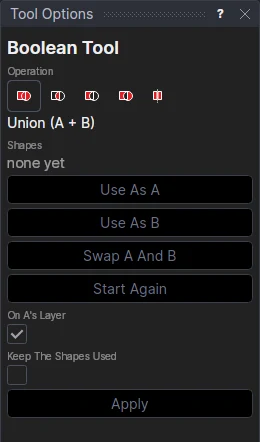
Usage
- Select* shape A, one or more elements, and click Use As A. The selection is cleared for the next pick, and A is shown selected.
- Select shape B, one or more elements, and click Use As B, or leave it selected and go straight on. B is shown dotted.
- Choose the Operation by its picture (below). The result is shown as it will be, and Shapes lists A, B and the result: how many shapes, and their area.
- Leave On A's Layer ticked to put the result on the layer of A's first element, or untick it and choose the layer.
- Tick Keep The Shapes Used to leave A and B as they are; unticked, they are moved to the Construction layer (not cut, not exported, still there to change).
- Click Apply. The status bar says how many shapes were made.
Swap A And B swaps them (to subtract the other way round), and Start Again clears both. A union needs only A: the shapes of A welded together. Undo takes the result away and puts A and B back as they were, in one step.
Operations
| Operation | Result | |
|---|---|---|
| Union | Everything in A or B: the shapes welded into one outline | |
| Intersect | Only what is in both A and B | |
| Subtract | A with B cut out of it (A − B) | |
| Exclusive | What is in A or B but not both | |
| Split | A cut into pieces along B's lines, each piece a shape of its own; B can be open lines |
What can be A and B
- lines, arcs, Béziers, splines, ellipses and polylines (with bulges or not), closed one by one, or meeting end to end: four separate lines round a square are joined into it;
- text: its letters' outlines, with their holes (a TrueType font's; a stroke font's letters are lines and close off nothing, so turn them into a TrueType text first, or use the Text to Outlines Tool on outline text);
- blocks, placed parts and imported vector pictures (Vector Import: SVG, DXF, PDF, AI …): the curves they draw;
- what other tools make: a Mitre Frame's pieces, a Mount Aperture's mount and window, a carton's panels, and another Boolean's result.
Shapes in one set that touch or cross are welded together (two overlapping circles are one area; a frame's four mitred pieces one ring), and shapes inside one another alternate, filled and hole, so a mount board and its window give a ring and a letter O its counter. Lines inside a shape don't divide it, and open lines close off nothing, except as Split's cutting lines. Shapes that only touch at a corner stay apart; edges the two share are handled.
The result follows its shapes
The result is one BOOLEAN element, worked out again whenever its shapes change: move a point, change a variable, read an imported picture again, and it follows. Its edges are pieces of the shapes' own curves, cut exactly where they cross: lines stay lines, arcs arcs and Béziers Béziers, so it exports as they would (DXF lines and arcs, SVG and PDF paths, CF2). Keep the shapes used on the Construction layer (the default) to change them later.
Examples
- Picture framing: draw or import a logo, make the mount with the Mount Aperture Tool, and subtract the logo from the mount board for a shaped aperture; then union the mount with the frame's outline.
- Packaging: intersect a carton's panel with the artwork's shape for a shaped window (the Window with Patch Tool makes rectangular ones), and offset it with the Offset Tool for its patch.
- Sign making: union the letters with the backing plate, for one outline to cut.
*Select elements as with the Select Tool: click, drag a rectangle, and hold Shift or Ctrl to add or remove. Read more about selecting
See also: BOOLEAN, Join Tool, Offset Tool, CONTOUR.