Making drawings 3D
A 3D page shows another page of the drawing made 3D. Folding is one way: a box's die line folds up along its creases. A drawing can also be made 3D in other ways, and in several at once: its outlines made solid to a thickness, with pockets and grooves cut into them; its parts put together; a flat template wrapped round a pipe or a bottle; a moulding swept round a frame. These are the 3D page's modes. Whatever a page is made of, the 3D page shows it, the slider makes it from flat, and it goes into every 3D export (glTF, USDZ, COLLADA, 3D PDF, proofs) and the web viewer.
The modes
| Mode | What it makes |
|---|---|
FOLD |
The structural lines folded: panels hinged at their creases (packaging, sheet metal). |
EXTRUDE |
Closed outlines made solid bodies by their layers' thicknesses, with pockets, cut-outs, V-carving and grooves cut into them to depth (below). |
ASSEMBLE |
Parts put together where their MATEs say, at the end of the slider. |
WRAP |
Flat templates wrapped round a surface: a pipe, a duct, a bottle, a can (Wrapping and sweeping). |
SWEEP |
A profile swept along a path: a frame's moulding, a worktop's edge (Wrapping and sweeping). |
ROOM |
A carpet plan shown as its room: walls round the outline, the carpet on the floor with its pile and seams (Materials, measuring and sections). |
SCENE |
The model shown in the drawing's scene: faced up on a retail shelf, stacked on a pallet, hung on a wall (Scenes: shelf, pallet and wall). |
A 3D page uses every mode its drawing wants, unless it says which (MODE, see PAGE):
PAGE "3D","Page 1",MODE="EXTRUDE,ASSEMBLE"
Without MODE (or with MODE="AUTO"): the lines on layers without 3D settings are folded; the layers with 3D
settings (LAYER3D) are extruded; its parts are put together where their mates say. So a
carton and the foam insert drawn with it both show: the carton folds up along its creases, and the insert, a solid
on its own layers, stands on the flat board (on the carton's base, if it is drawn there, and inside once folded). A
layer with 3D settings is never folded, even with MODE="FOLD". A drawing with nothing to fold and no 3D settings
has its cut outlines made a board, the material's thickness (T) thick.
On a 3D page, 3D › Build Mode chooses the modes: Auto (every mode the drawing wants), or tick the ones to
use: Fold, Extrude, Wrap, Sweep, Assemble. Ticking one while Auto is chosen uses that mode alone;
unticking the last goes back to Auto. Each choice is written on the page's PAGE line as its MODE and can be
undone.
Extrude by layer depth
Each layer says what its elements are in 3D with a LAYER3D line:
- Bodies (
AS="BODY"): every closed outline on the layer is a solid,THICKthick (the drawing'sTwithout it). An outline inside another is a hole right through it; one inside that hole, an island. A body starts on the floor, at heightZ, or on top of another layer's bodies (ON): a foam stack, a panel held on stand-offs. - Cuts into the bodies under them:
POCKET(toDEPTH),THROUGH(right through),VCARVE(sloping walls at half the cutter'sANGLE, made in steps) andGROOVE(along lines,WIDTHwide). Cuts go down from the top of the highest body they lie over (FROM="TOP") or up from the underside of the lowest (FROM="BOTTOM"), and through every body in their way: a cavity 40 deep goes through a 30 layer and 10 into the one under it. - Without
DEPTH, a cut is as deep as its element's machining settings say (TOOL DEPTH, see element settings), else its layer's, else right through. Elements on layers without 3D settings that are machined as pockets (TOOL POCKET=…) or drilled are cut too, so a drawing made for a CNC router shows in 3D as it will be cut. LOOKgives the layer's material (an appearance), andOPACITYhow see-through it is: glass, acrylic.- A part can have its own thickness, height, material and cut depth over its layer's (below).
As the slider moves from flat, each body grows to its thickness, then its cuts sink to their depths, one layer after
another from the bottom up (or in the order the layers' STEPs say).
A part's own settings
A layer gives all its parts one thickness, height and material. A part drawn on the same layer that differs (a
bookcase's 6 mm back among its 18 mm boards, a door's panel in its frame, a foam insert's thin base) has its own,
written on its outline: RULE THICK=BT,Z=8,LOOK="birch-plywood" (and DEPTH on a pocket, AS="NONE" to leave a part
out), or set in the Properties panel's 3D Part. For each setting, the first of:
- the part's own (see Element settings);
- its layer's LAYER3D setting;
- the drawing's: its material's thickness (
T), the 3D page's material, the floor.
The part's mates, cuts, fittings and the panel cut list all use its own thickness.
For each trade
| Work | Layers |
|---|---|
| CNC routing and carpentry: a panel with pockets and housings | AS="BODY",THICK=T,LOOK="birch-plywood" for the panel; AS="POCKET",DEPTH=6 for the pockets (or their own TOOL POCKET=…,DEPTH=-6); grooves AS="GROOVE",WIDTH=6,DEPTH=8. |
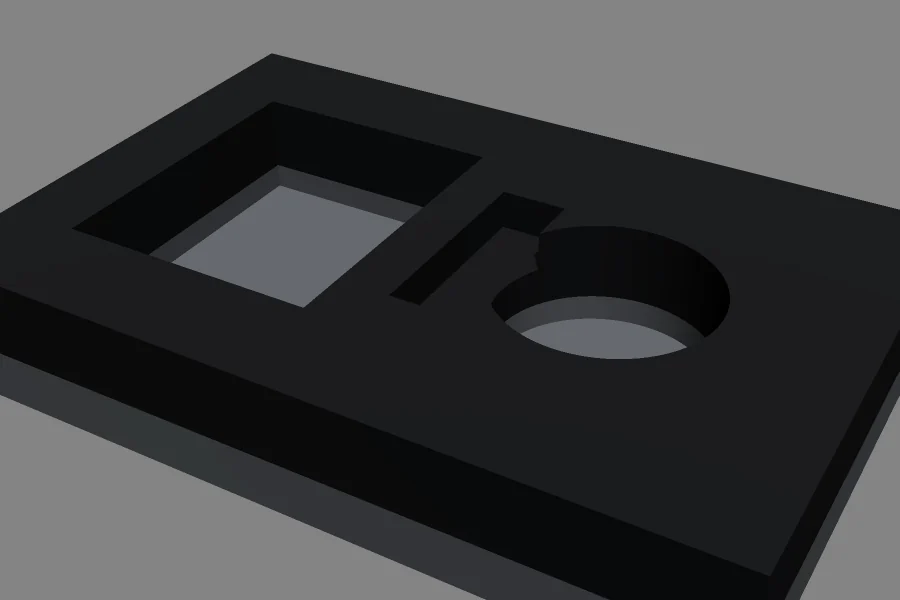
| Foam inserts with cavities | a body layer per foam layer, each ON the one under it; cavities AS="POCKET", deep enough to go through the layers they should. |
| Signs | the board AS="BODY"; routed letters AS="VCARVE",ANGLE=60 or AS="POCKET",DEPTH=3; a layered acrylic face AS="BODY",THICK=5,Z=25,LOOK="acrylic-clear" (25 off the floor, on stand-offs). |
| Stone worktops | the slab AS="BODY",THICK=30,LOOK="granite-black"; sink and hob cut-outs AS="THROUGH"; drainer grooves AS="GROOVE"; an upstand a body layer of its own; CABINETS=870 on the slab's layer stands it on base cabinets, with its sink, hob and tap (fixtures). |
| Glass panels | AS="BODY",THICK=10,LOOK="glass-clear"; holes and cut-outs inside the outline. |
| Gaskets | the gasket AS="BODY",THICK=3,LOOK="epdm-rubber": its bolt holes and bore are outlines inside it. |
Example
T=18
LAYER3D 10,AS="BODY",THICK=T,LOOK="birch-plywood"
LAYER3D 11,AS="POCKET",DEPTH=6
P4=[0,0]
P5=[400,0]
P6=[400,300]
P7=[0,300]
POLYLINE @1,[P4,P5,P6,P7],TRUE,10
P8=[50,50]
P9=[150,50]
P10=[150,100]
P11=[50,100]
POLYLINE @2,[P8,P9,P10,P11],TRUE,11
PAGE "3D","Page 1",MODE="EXTRUDE"
A 400 × 300 birch-plywood panel, T thick, with a 6 deep pocket, shown on a 3D page.
See also
- Pages › 3D pages: the 3D page, its slider and menus.
- LAYER3D and PAGE: the statements.
- Sheet metal and living hinges in 3D: bends round their true radii, collisions and the bending order, exact STEP.
- Appearances: the materials.
- Materials, measuring and sections: a material for each layer, the slab photo on stone, measuring and sections on the 3D page.
- Live editing in 3D: the drawing's variables, fold angles and fold order changed from the 3D page.
- Dimensions in 3D: dimensions and notes on the 3D model, in proofs, 3D PDF and STEP.
- Hardware, banding and fixtures in 3D: hinges, shelf pins, cams, dowels and runners from their marks, edge banding, a worktop's sink, hob, tap and cabinets.
- Products in the pack: a product's 3D model placed in the carton or foam, its fit checked, its foam pocket cut.
- Scenes: shelf, pallet and wall: the model on a retail shelf, a pallet load, or a sign or frame on a wall with LED halo lighting.