TEXT
Text at a point.
Syntax
TEXT position,"text",height,rotation
TEXT @id,position,"text",height,rotation,layer,KEY=value,…
| Argument | Meaning |
|---|---|
| position | The point it is placed at. Where on the text that is depends on HALIGN and VALIGN: by default, the left end of its baseline. |
| "text" | The text, in double quotes. \n starts a new line; \" is a quote. It can be worked out instead: a text variable (NAME) or an expression (CONCAT("Blank ",L," × ",W)), which the text then follows as the variables change. |
| height | The height of its capital letters: a number, or an expression (W/10) it follows in the same way. |
| rotation | The angle of its baseline, in degrees anticlockwise: a number, or an expression it follows in the same way: a variable (ANG1), or the direction of a line between two points (RTOD(ANGLE(P2-P1))), so the text turns as they move. |
The id, layer and any settings after it are the element settings. These settings can come after the layer:
| Key | Meaning |
|---|---|
KIND |
"VECTOR" (the default: a single-stroke font that can be cut or plotted) or "TRUETYPE". |
FONT |
For "VECTOR", an .shx file (left out: the built-in font); for "TRUETYPE", a font's name, such as "Arial", or its .ttf or .otf file. |
BOLD, ITALIC |
TRUE for bold or italic. |
WIDTH |
How wide the letters are: 1 normal, 0.8 narrower. |
TRACKING |
Space between letters: 1 normal. |
OBLIQUE |
Slant, in degrees. |
HALIGN |
"LEFT", "CENTER", "RIGHT", "ALIGNED" or "FIT" (the last two fit the text between the position and END). |
VALIGN |
"BASELINE", "BOTTOM", "MIDDLE" or "TOP". |
SPACING |
Space between lines: 1 normal. |
END |
A second point, for "ALIGNED" and "FIT". |
BACKWARD, UPSIDEDOWN |
TRUE to mirror the text across or upside down. |
Examples
P4=[250,200]
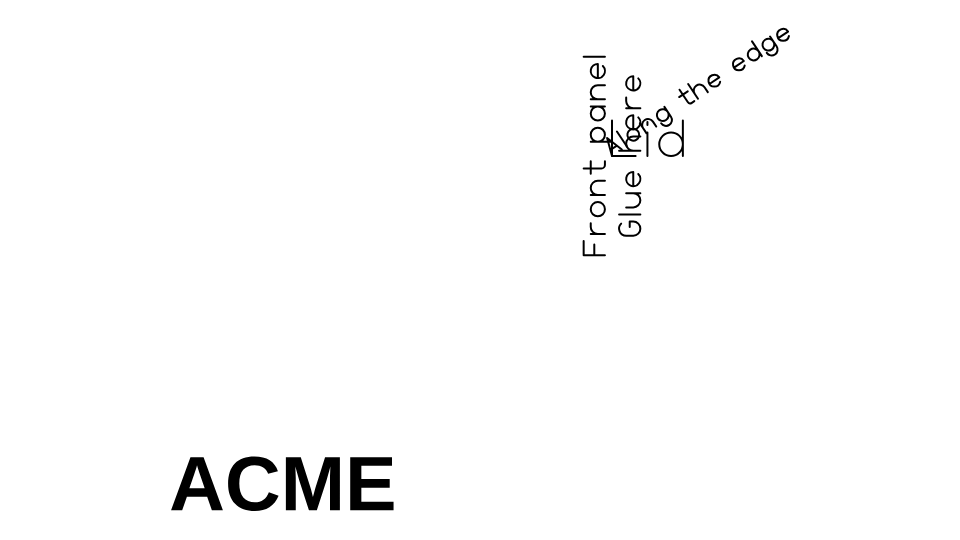
TEXT P4,"Lid",20,0
TEXT P4,"Front panel\nGlue here",12,90,0,HALIGN="CENTER",VALIGN="MIDDLE"
TEXT P0,"ACME",30,0,0,KIND="TRUETYPE",FONT="Arial",BOLD=TRUE
P5=[400,300]
TEXT P4,"Along the edge",10,RTOD(ANGLE(P5-P4)),0
Notes
The text moves with its point. A text, height or rotation worked out from variables is written back to the drawing
file as it was typed (CONCAT("Blank ",L), W/10, ANG1), not as what it came to; a rotation written as a number
stays a number. Turning or mirroring the drawing turns a rotation worked out from variables by as much (it is written
as the expression plus the turn), so it still follows them. To cut lettering as shapes of its own (a stencil), turn the
text into curves with the Text to Outlines Tool. See also: Text Tool.