Points
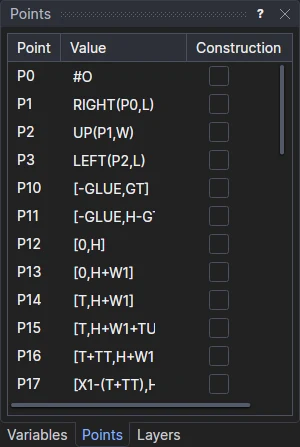
The Points panel lists the points of the page worked on (each page has its own): P0, P1 …
and the value of each, a position such as [250,200] or an expression such as P1+[0,FLAP]. Double-click a value
(or press F2) to change it; press Enter to apply it or Esc to throw it away. Elements are drawn on points, so everything on a point moves with it.
Construction points
A construction point is one that is neither drawn with the other points (View › Points, #SP) nor snapped to. Tick
Construction beside a point to make it one, or untick it to make it an ordinary point again.
Points become construction points by themselves when the only elements on them have gone to the Construction layer, or been taken out: when an element is split, trimmed or filleted, joined, exploded, or put on that layer in Properties (or, where it can't be moved in place, moved with the Transform Tool or the selection box). The element is kept, so whatever is defined on it still is, but its old points are no longer where anything is drawn, so they stop getting in the way. A point another element still uses stays an ordinary point. Undo puts them back as they were, and a point you have unticked yourself is left alone.
In the drawing file, and in the Interactive window, a construction point is written with
CONSTRUCTION after its value: P7=[120,0],CONSTRUCTION (see Assignment).
Points in the same place
Several points can be in the same place: a corner drawn twice, or a point worked out two ways. Their names are drawn
once, as a list beside the point (P3, P7, P12, each in its own colour where one is highlighted), rather than on top
of each other. A long list goes on over a few lines.
Tidy Drawing
Edit > Tidy Drawing tidies the drawing without changing what it draws or how it follows its sizes:
Points that are the same point are merged. Two points are the same when they are in the same place however the drawing changes, though they are written differently:
[P2.X,P0.Y]andRIGHT(P0,LEN)whenP2isUP(P1,WID), say. To find them, the drawing is worked out again a few times with its sizes (the variables that are numbers) and its fixed points nudged a little, and put back afterwards. Points that stay together every time are the same point. Points that are together only now come apart: a fixed point where a worked-out one happens to be, orRIGHT(P0,OTHER)whileOTHERhappens to equalLEN. Two fixed points at exactly the same position (a point made twice) are the same point.One of each set is kept: the origin, else one not worked out from the others, an ordinary point before a construction point, then the lowest number. Every element, point and variable that named one of the others names it instead, and the others are taken out. Only the page worked on's points are tidied: other pages have their own.
Construction nothing needs any more is taken out: elements on the Construction layer (on the page shown) that no point, element or variable refers to, and construction points that no element is drawn on and nothing is defined from. Taking one out can free others, so it goes round until nothing more can go. Anything still used, such as a curve that pieces are defined on or the line a point is defined on, is kept, so the drawing stays parametric.
The messages say how many points were merged and how many elements and points were taken out, and it is undone in one step.
Tidy Drawing never changes what is drawn. To take out lines drawn twice, close small gaps and merge pieces of an imported drawing (which fixes them where they are), use Clean Up Drawing.
Deleting what points are worked out from
Points can be worked out from elements as well as from other points: on a line or curve (ONELEMENT(@2,0.5)), at a
crossing, or on a part (@5.P3). Elements can be worked out from other elements too, and variables
from elements (LEN=LENGTHOF(@3)). Deleting an element
that something is worked out from would leave it with nothing to follow, so Edit > Delete asks first, saying what
refers to it:
- Keep as Construction (the default): the elements other things are worked out from are kept, on the Construction layer (shown, never exported), and the rest deleted. Everything goes on following as it did. Tidy Drawing takes them out once nothing needs them any more.
- Fix the Points: the points worked out from them are fixed where they are now, and the elements deleted. Those points no longer follow anything: Check Parametric lists them. An element that another element or a variable is still worked out from is kept on the Construction layer even so.
- Cancel: nothing is deleted.
Either is undone in one step. Deleting something nothing refers to doesn't ask.
The Properties panel shows, for what is selected, what it depends on and what uses it.
Check Parametric
Edit > Check Parametric checks that the drawing is parametric: that every point follows its variables. It lists the
points that are fixed in space instead: those written as numbers ([120,40]), as the origin moved by numbers
(#O+[120,40], P0+[0,15]), or worked out only from such points (P4+[5,5] when P4 is fixed, the middle of two
fixed points). Whatever is drawn on them stays where it is when the drawing's sizes change, which is seldom what a
parametric drawing wants. The origin's own point, P0 (#O), is where the drawing starts, and isn't listed.
The list shows each point, where it is, how it is defined and the elements drawn on it. Select Them selects the
points, with what is drawn on them on the page shown, so you can see where they are; define each from other points
and variables ([L,0], UP(P1,W) …) or from #O, and check again. Nothing is changed by the check itself. When no
point is fixed, it says so.
A point written as [0,0] is fixed too, even though it is where the origin is now: it stays there if #O moves.
Write it as #O (or use P0) to have it follow the origin.
A point that is meant to be fixed (a registration mark that must stay where the machine expects it, say) isn't
listed if its description says so: give it a description with the word "fixed" in it, as in
P9=[150,0],"fixed: register mark". Points worked out from it aren't listed either.
Show Fixed Points
View › Show Fixed Points shows at once what isn't parametric on the page you are looking at: the points fixed in space (by the same rules as Check Parametric) are selected, with the elements drawn on them, so they stand out in the drawing, and each is listed in the Interactive window with how it is defined, where it is and what is drawn on it. Nothing is changed. When no point is fixed, the Interactive window says so. It is a quick way to see what to put right in a drawing brought from another program, whose points are all fixed until you define them from variables.
When you draw, a new point that would be the same point as an existing one (not a construction point) isn't made: the existing one is used. A rectangle drawn across two corners of the page uses the page's other two corners.
The points of an imported part or vector image are its own, not
the drawing's: they aren't listed here or drawn. A vector image's aren't snapped to; a part's (those its lines are drawn
on, and its part markers) are, and clicking one makes a point of the drawing's own defined from it (@5.P3, see
Parts).