Array Tool
Use the Array Tool to make copies of part of the drawing in columns and rows, or round a centre.
Usage
Select* the elements to copy. Hold Alt to select points as well, or instead.
Choose the operation:
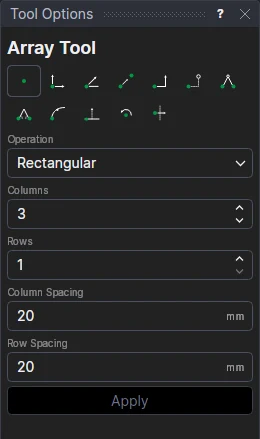
- Rectangular: set the number of Columns and Rows (the originals count as the first of each), and the Column Spacing and Row Spacing. Negative spacing goes left, or down.
- Polar: set the number of Items (the originals count as the first) and the Fill Angle: 360 spaces them evenly all the way round; less spreads them from the first to the last over that angle. Negative angles go clockwise.
The spacing and angles can be numbers or any expression. For a rectangular array, the copies are previewed in the drawing before you apply them.
Click Apply. A rectangular array is made straight away.
For a polar array, mark† the centre to copy round. The copies are shown as you move the cursor.
The copies are made in one step, and undone in one step.
Copies that follow the drawing
Each copy is parametric, like a copy made with the Transform Tool: its points are the
originals' moved ((P3)*TRANSLATE([2*ARRX1,ARRY1])) or turned ((P3)*ROTATE(P9,3*ARRA1)), so nothing is fixed in
space.
- Change the originals and every copy changes with them.
- The spacing or angle is kept in new variables (ARRX1 and ARRY1, or ARRA1), shared by the whole array. Change one, and the array spreads out or closes up.
- A polar array's centre is a point of the drawing. Move it, and the array moves round it.
The number of copies is fixed when they are made: for more or fewer, undo and make the array again.
*Select elements as with the Select Tool: click, drag a rectangle, and hold Shift or Ctrl to add or remove. Read more about selecting
†Depending on the chosen snap mode, several clicks may be required to define the point parametrically. Read more about Snap Modes