Fillet Tool
Use the Fillet Tool to round the corner between two elements with an arc. The two elements are trimmed back to the arc, so the corner is replaced by a smooth curve (or, with Trim Elements unticked, the arc is added and the elements are left as they are). With three elements selected, it puts in an arc that starts on the first, touches the second and ends on the third: see Three elements below.
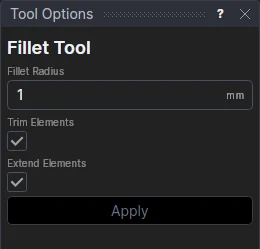
Usage
- Fill in the Fillet Radius. It can be a number or any expression, such as a variable.
- Select* the two elements that make the corner: lines, arcs, bulge arcs, elliptical arcs, Béziers, NURBS curves, cubic, Catmull-Rom, Hermite and B-splines, polylines or splines, in any combination.
- Leave Trim Elements ticked to trim the two elements back to the arc. Untick it to add the arc and leave the elements whole.
- Leave Extend Elements ticked to extend line segments and arcs that stop short of the corner to it. Untick it to refuse a corner the elements don't reach.
- Click Apply.
Fillets that follow the drawing
When the two elements are line segments that meet at a shared point, the fillet is parametric: its ends and centre are worked out from the lines' points, and its radius is kept in a new variable (FIL1, FIL2 …). Move the lines and the fillet follows; change the variable and the fillet grows or shrinks.
Any other corner is rounded with points defined by the two elements themselves
(FILLET(@3,@4,FIL1,END,START).POINTA …), with the radius in a variable, so it follows them too. The corner is kept by
the ends it cuts off (here the first element's end and the second's start), not by where it is, so the fillet stays
in that corner when the elements move. What is left of each element is a new element: a line or arc between its
points, or a piece of a curve, which keeps its exact shape. An element that the fillet's points are defined on (or
any curve that isn't a line, arc or circle) is kept under its own id on the Construction layer; a line, arc or
circle that nothing refers to any more is deleted. No point is fixed in space.
A circle, an ellipse or a closed polyline has no end to trim, so the fillet is added and the shape is left whole.
Three elements
Select* three elements, in order, and click Apply for an arc that starts on the first, touches the second and ends on the third, tangent to all three: a full round across the end of a slot, say, with the two sides selected first and last and the end in between. Its radius isn't the Fillet Radius: it is whatever makes it touch all three (across a slot, half its width).
- Which arc. Three elements can have several such arcs between them (a triangle's three lines have one inside and three outside). Those that touch the elements as they are drawn come before those that only touch their extensions. If there is just one, it is made straight away. If there are more, they are all shown dotted, the one nearest the pointer drawn solid: click to make that one, or right-click to cancel.
- Trimming. With Trim Elements ticked, the first and third elements are cut back to the arc, and the second, whose place the arc takes, is taken out (kept on the Construction layer, as the arc's points are defined on it). A circle is left whole.
- It follows. The arc's points are defined by the three elements
(
FILLET(@3,@4,@5,1,1,1,0).POINTA…, see FILLET), so it follows them: widen the slot and the round grows with it. - What can take part. Lines, line segments, arcs and circles (an arc counts as its whole circle, a line segment as its whole line).
When it can't
A message explains why nothing was rounded:
- the two lines are in a straight line, so there is no corner;
- the radius is too big for the lines it joins;
- the radius isn't more than zero;
- one of the elements is a point, text, a dimension or an image;
- with three elements, one of them isn't a line, an arc or a circle, or no arc touches all three.
*Select elements as with the Select Tool: click, drag a rectangle, and hold Shift or Ctrl to add or remove. Read more about selecting