Magnifier Tool
Use the Magnifier Tool to show a small part of the drawing larger: a magnifying glass. You draw a circle or rectangle over the part to magnify, and a callout of the same shape, somewhere else, shows what is inside it, magnified and cut to the callout. A leader joins the two, and a text can go under the callout ("Detail A", say).
Usage
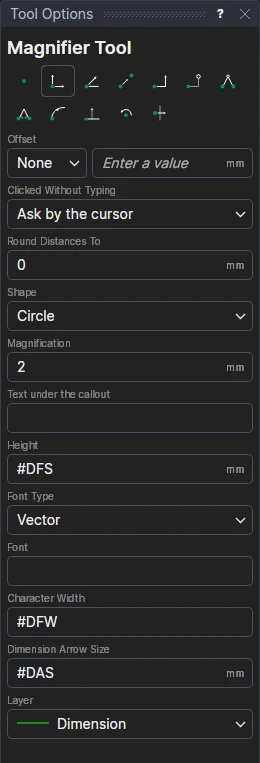
- Choose the Shape in Tool Options: Circle or Rectangle.
- Set the Magnification: how many times larger the callout is (
2to begin with). Leave it empty to mark the callout's size with a click instead (step 5). - Type the Text under the callout, if you want one. Type
\nto start a new line. - Mark the area to magnify:
- Circle: click* its centre, then a point on its edge.
- Rectangle: click* one corner, then the opposite corner.
- Click* the centre of the callout. The callout is shown as you move the cursor, with what it will show, and
is added on this click.
- With no Magnification, click* once more for its size: a point on the callout's edge (a circle) or a corner of it (a rectangle; the callout keeps the area's proportions).
Its text options are the dimension tools': Height, Font Type, Font, Bold, Italic and Character
Width, each starting as the drawing's dimension setting variable (#DFS …). The
magnifier goes on the Dimension layer unless you choose another.
Parametric
The magnification is kept in a new variable (MAG1, MAG2 …), and the callout's size is a point defined from its
centre by it. Change the variable in the Variables panel to make the callout larger or smaller. All the
points are drawing points, so the magnifier follows them: move the area's points and the callout shows the new area;
move the callout's centre to move the callout.
Notes
- What the callout shows is drawn over everything else, on a background of its own, so whatever is under the callout is covered.
- Lines with widths of their own are magnified with the drawing; hairlines stay hairlines.
- A magnifier whose area takes in another magnifier's callout shows that callout too, magnified again, up to three magnifiers deep.
- The leader runs between the two shapes along the line between their centres, and isn't drawn when they overlap.
- Change the text, or its height and font, in the Properties panel.
- PDF, Illustrator, EPS, PostScript and SVG exports cut what the callout shows to the callout with a clipping path, so the magnifier looks the same as it does on screen; so do images. DXF, CF2 and DDES3 have no clipping: their exports have the magnifier's outlines, leader and text.
*Depending on the chosen snap mode, several clicks may be required to define the point parametrically. Read more about Snap Modes
See also: MAGNIFIER, Callout Tool.