Measure Tool
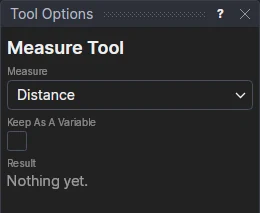
Use the Measure Tool to measure the drawing without changing it: the distance between two places, an angle, or the length of an element.
Usage
- Choose what to Measure:
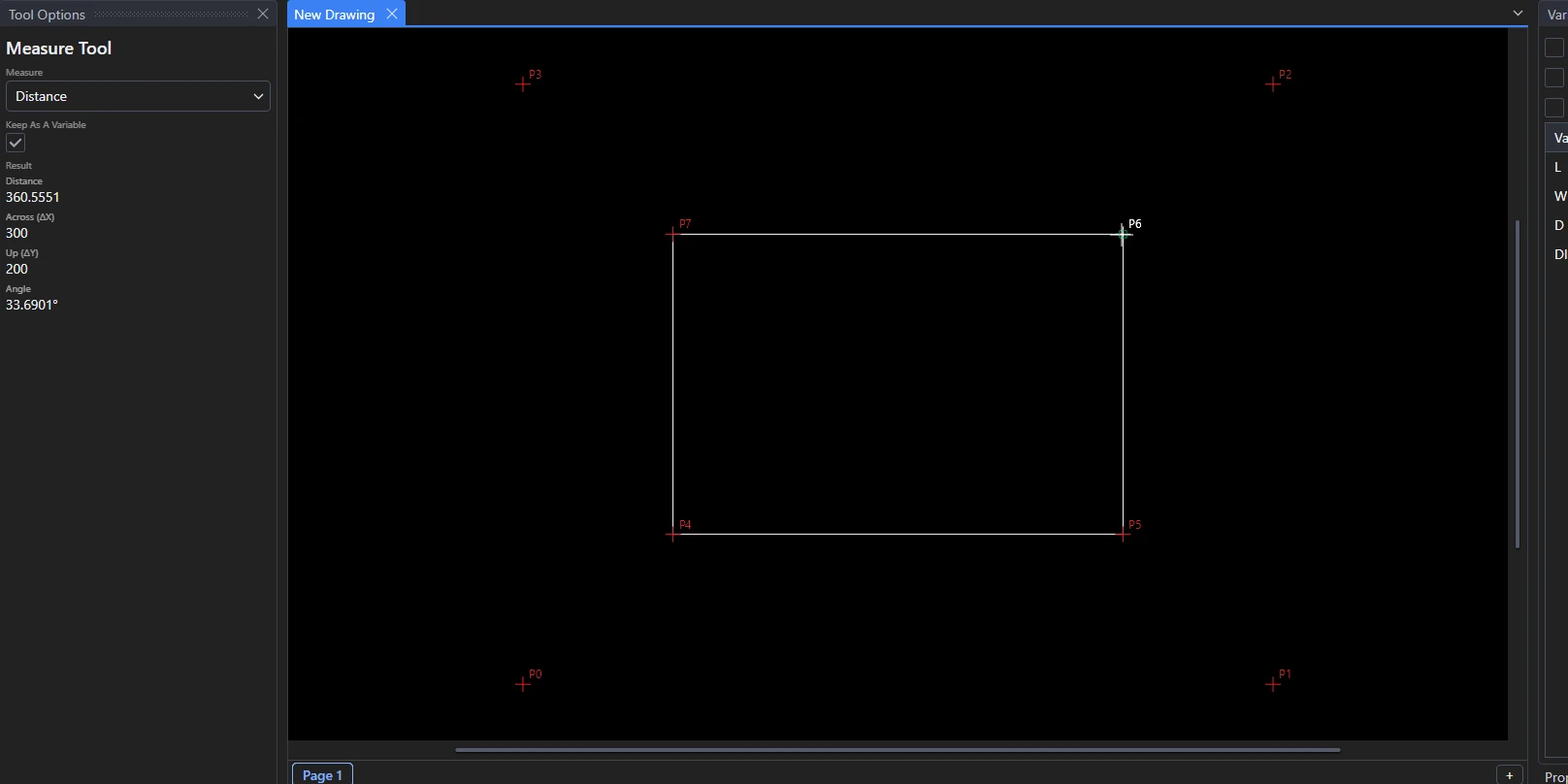
- Distance: click two places. You get the distance, how far across (ΔX) and up (ΔY), and the angle from the first to the second (anticlockwise from across).
- Angle: click the corner, then a place on each side. You get the angle between the sides, and the angle anticlockwise from the first side to the second.
- Length: click an element. You get its length along it (round an arc or curve), and its area if it is closed.
- Tick Keep As A Variable to keep the measurement (see below).
A place is a point, or a place the object snaps find on the elements: a midpoint, an end, a centre, a quadrant, a crossing. It is measured where it is, without a point being made. While you measure, the result follows the pointer. The result is shown in the tool's options and written in the Interactive panel. A right click starts again.
Keeping a measurement
With Keep As A Variable ticked, each measurement is kept as a new variable defined by what you measured, so it follows the drawing:
| Measure | Variable |
|---|---|
| Distance | DIST1 = DISTANCE(P3,ONELEMENT(@5,0.5)) |
| Angle | ANG1 = the angle between the sides, in degrees |
| Length | LEN1 = LENGTHOF(@5) |
Use the variable in other expressions, or look at it in the Variables panel as you change the drawing. See LENGTHOF.
See also: Area Tool, Identify Tool.