Offset Tool
Use the Offset Tool to draw a copy of elements a set distance to one side: a line beside a line, an arc round an arc, a shape inside or outside a shape.
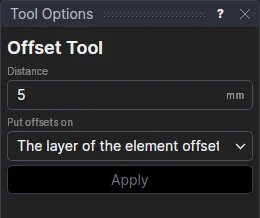
Usage
- Fill in the Distance. It can be a number or any expression.
- Choose where to put offsets: on the layer of the element offset (the default), or on the layer chosen below, then choose that Layer. See Which layer the offsets go on.
- Select* the elements to offset: one, or as many as you like. Any line, arc or curve can be offset.
- Click Apply.
- Click on the side to offset to. For each element, the offset goes to the side of it you clicked on; for a closed shape, inside or outside. The offsets are shown as you move. A right click cancels.
Offsets that follow the drawing
Each offset is worked out from the element it was made from, whenever it changes: move the element's points and the offset follows. The distance is kept in one new variable (OFF1, OFF2 …) shared by everything offset at once, so changing it moves them all. Lines and arcs offset exactly; other curves within a tiny tolerance. Where a curve bends more tightly than the distance, the offset is the longest part left.
Which layer the offsets go on
By default each offset goes on the same layer as the element it is offset from: offset a cut line and a crease together and you get a cut beside the cut and a crease beside the crease, as a copy keeps its layer. Choose The layer chosen below to put every offset on one layer instead (a bleed line, a glue flap outline, a construction guide), and choose the layer in Layer under it; that also makes it the current layer, as a tool's Layer option does. The choice stays while the drawing is open. Layers of your own can be made in the Layers panel.
*Select elements as with the Select Tool: click, drag a rectangle, and hold Shift or Ctrl to add or remove. Read more about selecting