Outline Text Tool
Use the Outline Text Tool for lettering that is cut: a sign's letters routed or lasered, vinyl lettering, a stencil. The text is set in a TrueType or OpenType font, and the outlines of its letters are what is cut.
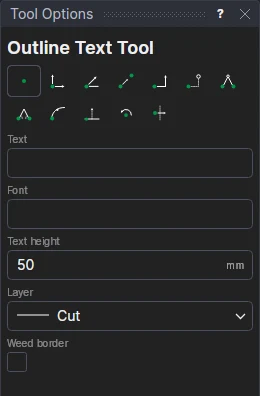
Usage
- Type the Text.
- Choose the Font: a font installed on your computer (start typing its name), or a .ttf or .otf file; empty for the default.
- Fill in the Text height: the capitals' height, a number or any expression.
- Choose the Layer it is cut on.
- Turn on Weed border to put a weed box round it a Weed border margin out, for vinyl (see Weed Border Tool).
- Click where the middle of the text goes: a point, a snap, or anywhere.
The text is a TEXT element: change its words or its font later in the Properties panel, and the cut follows. DXF, SVG, G-code and HPGL get the letters' outlines.
Lettering sized by a variable
The height is kept in a new variable, TXH1, and the Text height box then shows it, so the next lines of text share it: change TXH1 and all the lettering is resized. Type a number to start a new variable. The weed border is on the text's extent, so it follows the text too.
The Stencil Bridges Tool works on letters drawn as closed shapes: for a stencil, turn the text into curves with the Text to Outlines Tool once its words and size are settled (or bring the lettering in as outlines, an SVG or DXF of it, with the Vector Import Tool).
See also: Text Tool, Sign making, Vinyl cutting.