Rectangle Tool
Use the Rectangle Tool to draw a rectangle, square to the axes, as a closed polyline: with square corners, rounded corners, or as a pill (its short ends half circles).
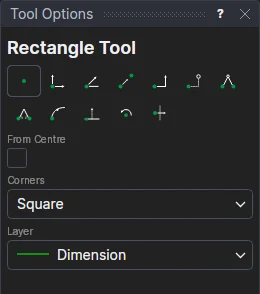
Usage
- Tick From Centre to draw it from its centre; leave it clear to draw it corner to corner.
- Choose the Corners:
- Square: an ordinary rectangle.
- Rounded: each corner rounded with an arc of the Corner Radius (a number or any expression), no more than half the shorter side.
- Pill: the two short ends are half circles, so the straight sides are only the long ones (a square makes a circle).
- Choose the layer to draw on.
- Click* a corner (or the centre).
- Click* the opposite corner (or, from the centre, any corner). The rectangle is shown as you move.
The other corners are new points worked out from the two you marked (the same X as one, the same Y as the other), so the rectangle follows those two points and nothing is fixed in space.
A rounded rectangle or a pill is still one closed polyline. It runs through new points on the sides, defined on the
corners (ALONG(P3,P4,FIL1) …), with arcs round the corners. A rounded rectangle's radius is kept in a new
variable (FIL1, FIL2 …): change it and every corner changes with it. A pill's ends are always
half its width, so it stays a pill when you change its size.
*Depending on the chosen snap mode, several clicks may be required to define the point parametrically. Read more about Snap Modes