Select Tool
Use the Select Tool to choose the elements or points that other commands work on: copy, cut, delete, and the Split, Intersect, Fillet, Chamfer and Transform tools, which select in the same way.
Usage
- Click an element to select it. The element nearest the cursor is chosen.
- Drag a rectangle to select every element that lies completely inside it.
- Hold Alt while you click or drag to select points instead of elements: the nearest point to a click, or every point inside the rectangle.
Selected elements and points are highlighted. Clicking or dragging again replaces the selection, unless you hold a key:
| Hold | What happens |
|---|---|
| Shift | Adds to the selection. |
| Ctrl | Toggles: unselected items are added, selected ones are removed. |
| Ctrl + Shift | Removes from the selection. |
To select every element, use Edit › Select All (Ctrl+A). To clear the selection, click an empty part of the drawing, or use Edit › Select None (Ctrl+Shift+A).
Selecting by layer and kind
In the tool's options:
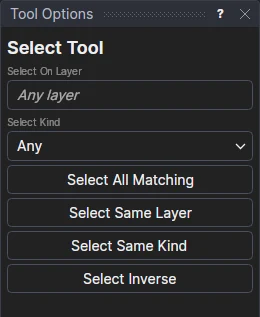
- Select On Layer: type or pick a layer's name, and only elements on that layer are selected when you click or drag. Leave it empty for any layer.
- Select Kind: only elements of this kind are selected: lines, arcs (of every kind), circles, ellipses, Béziers, splines (including NURBS, B-, cubic, Catmull-Rom and Hermite), polylines, offsets, pieces, points, text, dimensions or images. Any selects every kind.
- Select All Matching: selects every element that matches both, anywhere in the drawing.
- Select Same Layer: selects every element on the layers of the elements selected.
- Select Same Kind: selects every element of the kinds of the elements selected.
- Select Inverse (Ctrl+I): selects everything that isn't selected, and nothing that is.
The last three are also in the Edit menu. Only elements that are drawn are selected: not hidden ones, nor ones on hidden layers.
Moving, scaling and rotating
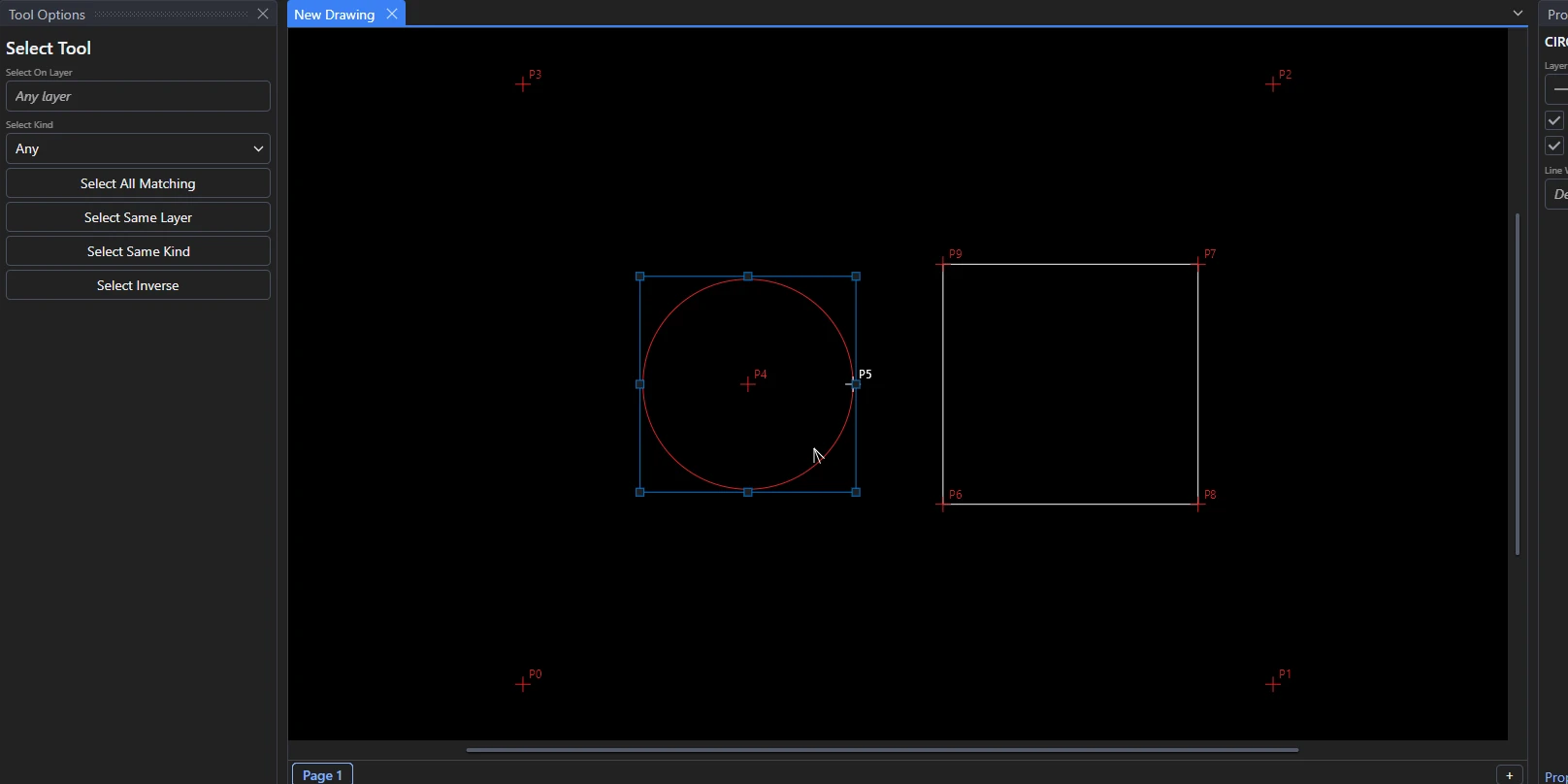
When something is selected, a box with eight handles is drawn round it. Drag:
| Drag | What happens |
|---|---|
| The selection itself (any selected element or point) | Moves it. |
| A corner handle | Scales it, about the opposite corner. |
| A side handle | Scales it across or up only, about the opposite side. |
| Just outside a corner | Rotates it, about the centre of the box. |
The cursor shows which one a drag will do, and the selection is shown where it will go as you drag.
As you drag, the selection snaps to points: when one of its points comes near a point of the page (within a few pixels), the drag is set so it lands exactly on it, and that point is ringed. A move puts it on the point; a corner handle scales so it lands on the point (in proportion with Shift); a side handle scales so it lines up with the point across or up; a rotation turns it to line up with the point, seen from the centre. Hold Ctrl to drag freely.
A snapped drag stays linked to the point: its variables are worked out from that point and from where the selection's
point was (MOVX1=P12.X-([40,10]).X), rather than being numbers, so when the point moves (its definition or a
variable it uses changes) the selection moves, scales or turns with it. If the point is itself worked out from what is
being dragged, the amounts are kept as numbers instead.
| Hold while dragging | What happens |
|---|---|
| Shift | Moves only across or only up, scales in proportion, or rotates in steps of 15°. |
| Alt | Moves, scales or rotates a copy, leaving the selection where it is. |
| Ctrl | Doesn't snap to points (see below). |
Like the Transform Tool, these move the selection in place, parametrically: each moved point is redefined as where it was, moved, so nothing is fixed in space and nothing is copied. An element that isn't selected but shares a point with the selection stretches to follow it.
- Variables: the amounts are kept in new variables that you can change afterwards: MOVX1 and MOVY1 for a move, SCA1 (or SCAX1 and SCAY1) for a scale, ANG1 for a rotation.
- Dragging again: drag the same selection again straight after a move and the move's variables change, rather than another move being added.
- Corners and centre: the corner or centre the selection is scaled or rotated about is defined by the selection's outermost points. Move those points and it moves with them.
What was moved stays selected, so you can drag it again.