Text to Outlines Tool
Use the Text to Outlines Tool to turn text into curves: each letter's outline becomes closed shapes of its own - its outside, and each hole in it (the middle of an O, an A, a B) - that can be cut, offset, bridged and edited like any other shape. Use it for stencils, for lettering routed, lasered or waterjet cut, and for vinyl lettering a cutter has to weed. It works in every industry.
Usage
- Select the text to turn into curves: TEXT elements (typed with the Text or Outline Text tools), or the marks the Part Mark Tool made (blocks that draw only text). Anything else selected is left as it is.
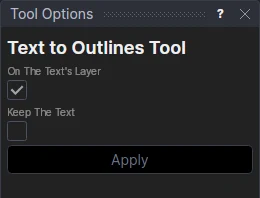
- Leave On The Text's Layer ticked to put each text's curves on its own layer, or untick it and choose the layer to put them on (the Cut layer, say).
- Tick Keep The Text to keep the text, moved to the Construction layer (not cut, not exported), so you can change it and turn it into curves again; unticked, the text is removed.
- Click Apply. The status bar says how many curves were made and how many of them are closed.
Undo puts the text back as it was.
What it makes
The curves are the letters' outlines exactly as the text is drawn, in its font, size, rotation and alignment:
- A TrueType or OpenType font's letters (KIND="TRUETYPE") become closed shapes: each contour a closed polyline when it is all straight, or a closed spline of lines and Bézier curves (the font's curves, exactly). A letter with holes gives its outside and one shape for each hole, so the Stencil Bridges Tool can hold the holes' islands to it.
- A vector (single-stroke, SHX) font's letters are strokes, not areas: they become open lines and curves, for engraving or pen plotting. For lettering cut out as shapes, use a TrueType font.
The curves of a TEXT element are on points defined from the text's position point (P5+[12.5,3.2]): move that point,
and the lettering moves with it. A part mark's text has no point of its own, so its curves are on points where the text
is now.
Why it isn't parametric
The curves are made once, from the text as it is now: change the text's words, font, height or a variable it uses, and they don't change. This is deliberate. A TEXT element is already drawn, cut and exported as its letters' outlines (DXF, SVG, G-code and HPGL get them) and follows its variables: keep it as text while its words and size may change. Turn it into curves when the lettering is settled and is to be worked on as shapes: the Stencil Bridges Tool and the other tools that work on the letters cut them and refer to each contour as an element of its own, which a live outline would break each time the text changed (a letter more or less, another font). To change the lettering later, tick Keep The Text: change the kept text, delete the old curves and turn it into curves again.
See also: TEXT, Explode Tool, Sign making, Vinyl cutting, Laser cutting.