Viewer
The ParametrIQ Viewer opens any drawing ParametrIQ reads and shows it flat or folded up in 3D. You can turn its
layers on and off, measure it, and export it to another format. It reads each file with ParametrIQ CAD's own readers,
so what you see is what CAD would open. It is a separate, free program (PiQ.Viewer.App).
Getting the Viewer
The Viewer is free: it needs a ParametrIQ account and its own licence, which costs nothing. Ask for it under ParametrIQ Viewer on your account's Licenses page, download and install the Viewer, and activate it when it first starts, as Free Apps describes.
Opening a drawing
Click Open… and choose a drawing, drop one on the window, or open a file with the Viewer from your computer's file manager. It reads:
| Files | Read as |
|---|---|
ParametrIQ drawings (.piq) |
Run as ParametrIQ CAD runs them |
CF2 and DDES (.cf2, .dd3) |
Dielines, with their cut, crease and other rule lines |
DXF (.dxf) |
Its layers and lines |
HP-GL and G-code (.plt, .nc) |
The tool's path, pen by pen or tool by tool |
| PDF, SVG, EPS and Illustrator | Their vector content |
The status line says what was opened, and anything that couldn't be read in it; the drawing's size, its number of elements and its length of line are on its right.
Looking at it
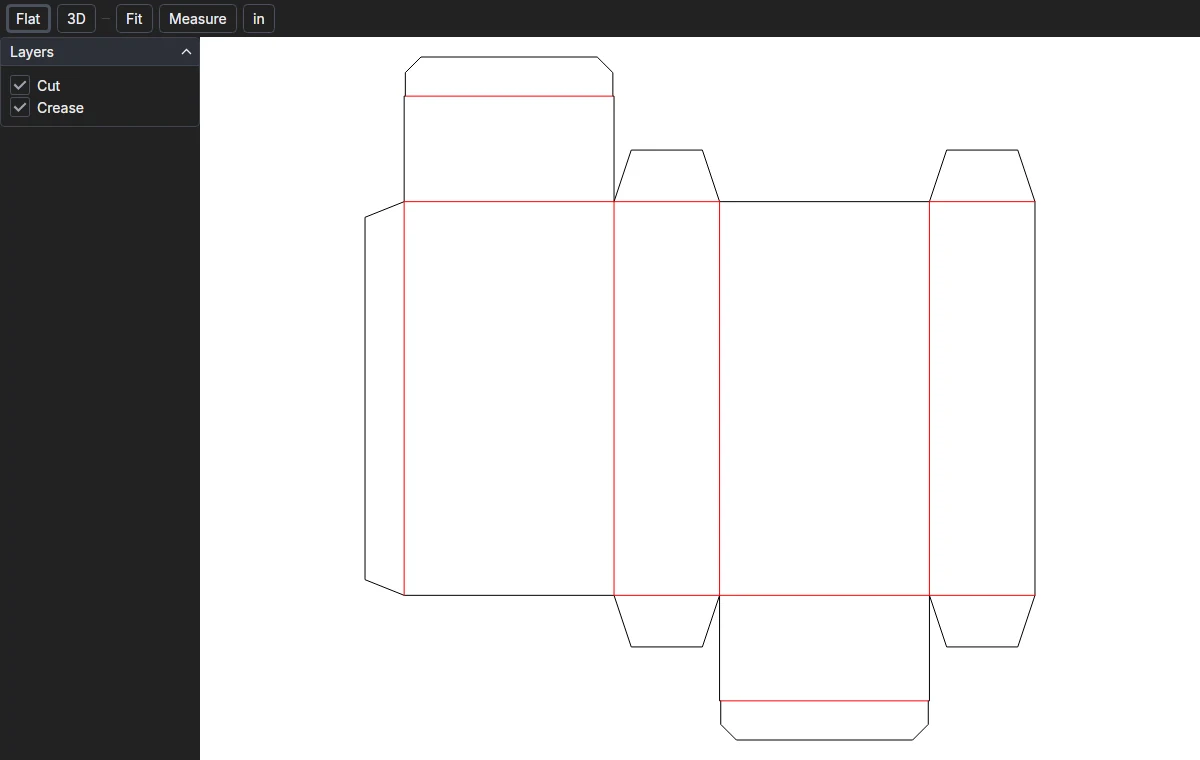
- Flat shows the drawing as its PDF would draw it. Drag to move it and turn the wheel to zoom; Fit (or a double-click) fits it to the view again.
- 3D folds a dieline up in ParametrIQ's 3D view, as CAD does. Fold sets how far it is folded; Play shows it folding up from flat, as it is made (Stop stops it). Floor shows or hides the floor under it and its shadow. A drawing with nothing to fold says so.
- Layers turns each layer on or off in the flat view.
- Measure measures between two points you click; line ends and corners snap. The distance and its x and y are shown beside it, in mm or, with in, in inches. Measuring needs the licence.
- A right-click on the view offers the same. Flat: Fit to View, Zoom In, Zoom Out, Measure, Inches, Show All Layers (when some are hidden) and Show in 3D. In 3D: Play Folding Up, Fold Up, Unfold Flat, Floor, Fit to View, Reset View and Show Flat. Both end with the app's own commands, such as Export….
Exporting
Export… writes the drawing in another format, chosen by the file type in the save dialog: PDF, DXF, CF2, DDES,
SVG, HP-GL, PNG or a ParametrIQ drawing (.piq). It is written with ParametrIQ CAD's own writers. Exporting needs the
licence.