Comparing Drawings
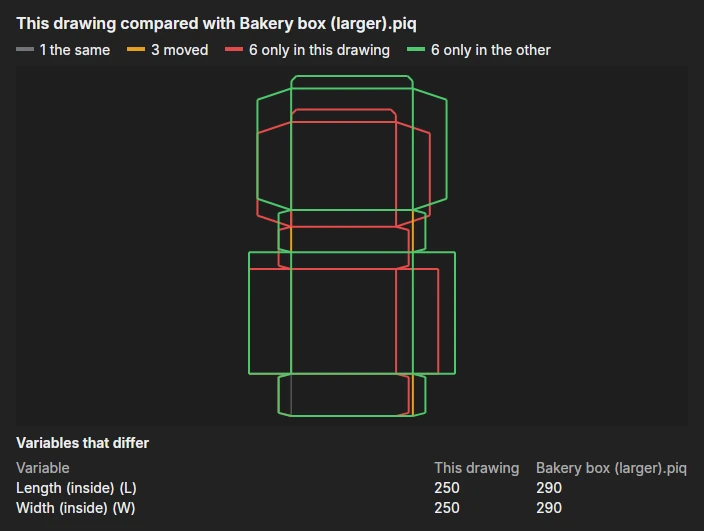
Edit › Tool › Measure and Inspect › Compare With… compares the drawing you are working on with another drawing file: a customer's revised version, last week's copy, a design before and after its sizes changed. Choose the other file and a picture shows the two drawn over one another, with the labelled variables whose values differ. Nothing in either drawing is changed.
What it shows
Each line of both drawings (as they would open, parts and blocks included) is matched with the other's:
| Colour | What it means |
|---|---|
| Grey | The same: in both, where it was. |
| Amber | Moved: the same shape on the same layer, somewhere else. |
| Red | Only in this drawing: taken out in the other. |
| Green | Only in the other: added in the other. |
A line drawn the other way round counts as the same. Lines are matched to 0.01 mm. Under the picture, Variables that differ lists each labelled variable whose value isn't the same in both, or that only one of them has (shown as –).
The counts are written in the Interactive window too.
See also: Check Dieline, Variables.