Tool Options
The Tool Options panel shows the tool you are using and its settings. It is docked beside the toolbar to begin with; like the other panels it can be moved, and View › Panels › Tool Options opens it if it is closed.
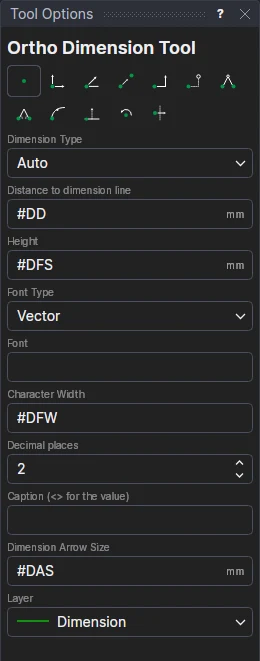
From the top:
- The tool's name. The status bar at the bottom of the window says what to click next.
- Snap modes. For a tool that places points, buttons choose how a click becomes a point: an existing point (Snap), or a new one straight across or up (Ortho), at an angle (Angle), part way between two (Tween), level with two others (Two-Point), across and up from one (Offset X and Y), a distance from each of two (Two Distances), at an angle from each of two (Two Angles), along an element (Along an Element), along and out from a line (Offset from a Line), turned round a centre (Around a Centre), or reflected in a line through two (Mirror). The chosen one is highlighted. See Snap Modes; a snap mode's own values (a distance, an angle) appear below the buttons. One filled in is held for every point (shown with a lock; ✕ clears it). Below them, Clicked Without Typing and the rounding steps say what a click gives for a value you didn't type by the cursor.
- The tool's settings, such as the layer to draw on, a font, or how many items to make. Each tool's page lists its own: see Tools.
Values
Many settings take an expression rather than only a number: a variable (#DD), or a calculation (W/4,
DISTANCE(P0,P2)). Variable names are offered as you type. A value that can't be worked out has the reason shown under
it in red, and the tool waits until it is put right. Each drawing keeps its tools' settings while it is open, so the
next time you choose a tool its settings are as you left them.
A setting that starts with a variable's name, as the dimension tools' Height starts as #DFS, makes what you
draw follow that variable: change the variable later and everything drawn with the setting left so changes too.
See also: Snap Modes, Tools, Variables.