Bend Line Tool
Use the Bend Line Tool to draw a sheet-metal bend line on a flat pattern: a line on the bend layer (the Crease layer, as the Run Parametric library's sheet-metal designs have it), with a note above its middle of the bend's angle, inside radius and its bend allowance or bend deduction. It is a tool of the sheet metal and HVAC trades.
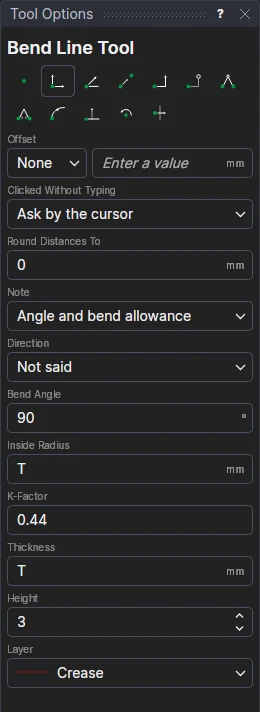
Usage
- Choose the Note: Angle and bend allowance, Angle and bend deduction, Angle only, or None (the line only).
- Fill in the Bend Angle (degrees: 90 for a right angle), the Inside Radius, the K-Factor (where the neutral line lies through the thickness, from 0 to 1) and the sheet's Thickness. In a sheet-metal drawing (see Materials) they start as its R, K and T, so the note follows the material chosen.
- Set the note's Text Height, and choose the layer for the line (the Crease layer to start with). The note goes on the Dimension layer, so it isn't cut.
- Click* the start of the bend line, then its end.
The note
The note is worked out from the variables each time the drawing changes, for example 90° R2 BA 4.52:
- the bend allowance (BA) is the length of the bend along its neutral line, BENDALLOWANCE(angle, R, K, T): what a flat pattern measured to the bends' tangent lines adds for each bend;
- the bend deduction (BD) is what to take off the outside sizes for the bend, BENDDEDUCTION(angle, R, K, T).
It follows the drawing
The line is drawn on the points you marked, so it follows them, and the note moves and stays above its middle. The
angle is kept in a new labelled variable (BANG1 …). A radius, K-factor or thickness typed as one of
the drawing's variables (R, K, T) is used as it is; a number typed is kept in a new variable: R, K or T
themselves if the drawing hasn't one yet (so the next bend line uses it), else R1, K1, T1 …. Change one and the
note follows. In a drawing with a K-factor table (KTABLE), a radius other than R is worked out
with its table's K-factor, KFACTOR(KTABLE,radius,T), instead of K. A note of 180° (or up to 270°) makes a hem:
see Hems. The note's text turns with the line as it was drawn.
*Depending on the chosen snap mode, several clicks may be required to define the point parametrically. Read more about Snap Modes