Chamfer Tool
Use the Chamfer Tool to cut the corner between two elements with a straight line. The two elements are trimmed back to the new line.
Usage
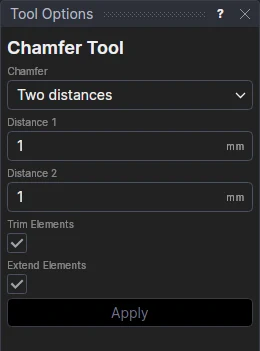
- Choose the Chamfer type and fill in its sizes. Each can be a number or any expression.
- Two distances: Distance 1 and Distance 2, how far back from the corner the cut starts on the first element and ends on the second.
- Distance and angle: a Distance back from the corner on the first element, and the Angle (in degrees) the cut leaves it at, turning towards the second, until it meets it. 45° on a square corner is an equal cut.
- Equal: one Distance, the same back from the corner on both.
- Select* the two elements that make the corner: lines, arcs, bulge arcs, elliptical arcs, Béziers, NURBS curves, cubic, Catmull-Rom, Hermite and B-splines, polylines or splines. Select the one Distance 1 is measured along first. On a curve, the distance is measured along the curve.
- Leave Trim Elements ticked to trim the two elements back to the line. Untick it to add the line and leave the elements whole.
- Leave Extend Elements ticked to extend line segments and arcs that stop short of the corner to it. Untick it to refuse a corner the elements don't reach.
- Click Apply.
Chamfers that follow the drawing
When the two elements are line segments that meet at a shared point, the chamfer is parametric: its ends are worked out from the lines' points, and its sizes are kept in new variables: the distances in CHAM1, CHAM2 …, an angle in CHAMA1 … (an equal chamfer has just one distance). Move the lines and the chamfer follows; change a variable and the cut changes size.
Any other corner is cut with points defined by the two elements
(CHAMFERDISTANCES(@3,@4,CHAM1,CHAM2,END,START).POINTA …), kept to that corner by the ends it cuts off, so it follows
them. The elements are trimmed as with the Fillet Tool: an element the chamfer is defined on is
kept on the Construction layer, with what is left of it defined on it. A circle, an ellipse or a closed polyline is left whole.
When it can't
A message explains why nothing was cut: the lines are in a straight line, a distance is too big for its line or isn't more than zero, or one of the elements is a point, text, a dimension or an image.
*Select elements as with the Select Tool: click, drag a rectangle, and hold Shift or Ctrl to add or remove. Read more about selecting