Fill Tool
Use the Fill Tool to fill an area with hatch lines (or cross-hatching), one colour or a gradient. Mark a point inside an area the drawing closes off, and the area round it is filled. Like the Area Tool, it shows the area under the cursor as you move it: its outline, its fill, and in Result its area, perimeter and (for a hatch) the hatch lines' number and length.
Usage
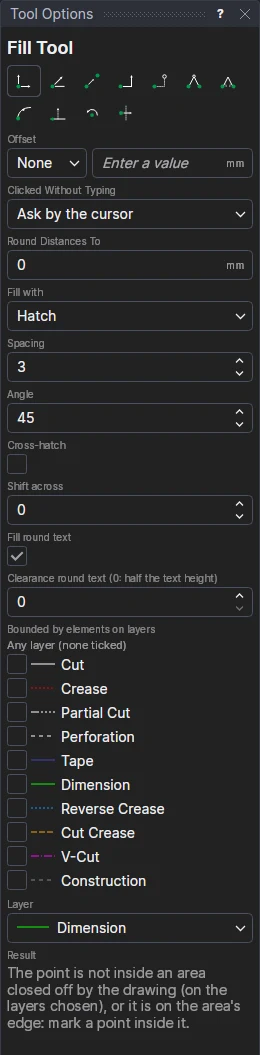
- Choose what to Fill with in Tool Options:
- Hatch: the Spacing, Angle, Cross-hatch (and the angle between the two sets) and Shift across.
- Solid: the Colour, with its opacity, or The layer's colour.
- Gradient: Linear (across the area at the Angle), Radial (out from the middle), Conic (round the middle, from the Angle) or Corners (a colour at each corner, blended across); its colours, and what it does Beyond the ends (pad, reflect, repeat or none).
- Set Fill round text and its Clearance, the layers whose elements bound the area, and the Layer the fill goes on.
- Move the cursor into the area: its outline and fill are shown.
- Click* to mark the point. The point is defined from points already in the drawing, never as a position in space, and the fill is added round it.
Notes
- Bounded by elements on layers: tick the layers whose elements close off the area (for example only Cut, so creases inside a panel don't split it). With none ticked, every layer's elements bound it.
- Closed shapes inside the area (holes, windows) are left empty. Text inside it is filled round: each line of text is kept clear by a box round it, the clearance out from the text (0: half the text's height).
- Only what is shown counts: hidden elements, elements on hidden layers and anything on the Construction layer are disregarded, so they neither close off the area nor are filled round.
- The fill follows the drawing: change a size, move a line or add one across it, and it is worked out again. A gradient stretches with the area's box. Its hatch lines aren't drawing elements, points or snaps; the fill is one element. Change what it is filled with, its hatch, colour or gradient in the Properties panel.
- A solid or gradient fill is selected by clicking anywhere inside it.
- If the point isn't inside a closed area, or is on one of its edges, no fill is made. A point straight up or across from a corner (Ortho) lies on the edge: use Offset X and Y (across and up from a corner), Two-Point (across from one point, up from another), Tween (between two corners) or Angle to mark a point inside.
- More gradients (a focal point, several colours, a gradient in drawing units) can be written with the FILL command.
*Depending on the chosen snap mode, several clicks may be required to define the point parametrically. Read more about Snap Modes
See also: FILL.