Nest Tool
Use the Nest Tool to lay the page out on a sheet as many times as fit, in rows and columns: blanks on a board, labels on a roll, parts on a plate. The nest is parametric: the sheet's size and the gaps become variables, and when they change, or the part's own sizes do, it is laid out again.
Usage
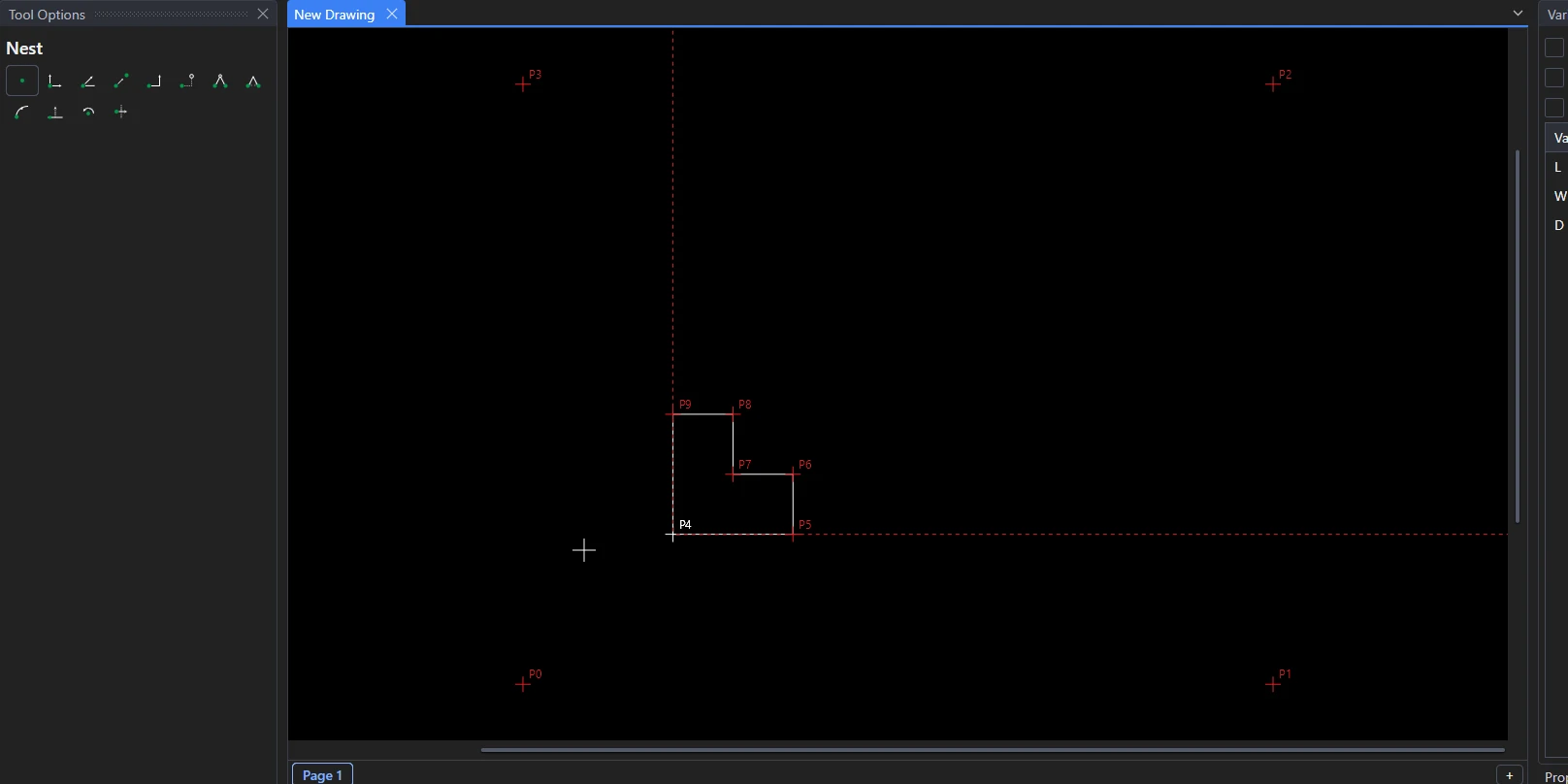
Draw the part, as usual: a carton blank, a gasket, a label. The page it is on becomes the part.
Choose the Nest Tool. The sheet, at the size last used, follows the cursor.
Click* where the sheet's bottom-left corner goes.
Say how to nest it:
Setting Meaning Width, Height The sheet's size. Margin Kept clear round the sheet's edges. Gripper margin More kept clear at the sheet's leading edge (the bottom), on top of the margin, where the press's grippers hold it. Counted as waste. Across, Up The gutters: the gaps between copies side by side and one above another. Copies wanted How many are needed: the nest says how many sheets that takes (0: just one sheet). Turn the part As it is drawn (to keep the grain or print direction), turned a quarter, or whichever fits more. Turn every other column half round, Turn every other row half round Lets shapes interlock (triangles, tapered flaps), if that fits more. 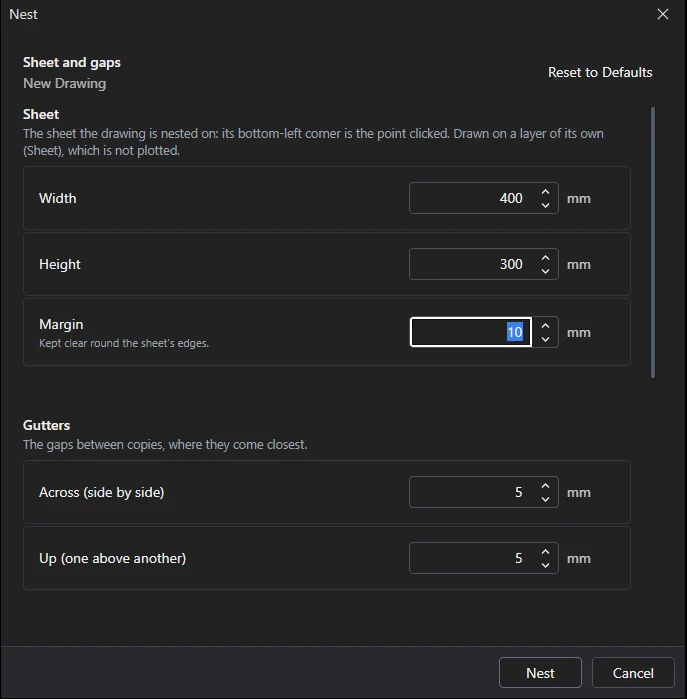
Click Nest. The nest is made on a new page (named after the part's page: Page 1 nest), which is then the one worked on. The messages say how many copies fit on a sheet, how many sheets the copies wanted take (and how many copies are spare), and the wastage, a sheet's and the run's.
The settings are remembered for next time, separately for millimetre and inch drawings.
What it makes
- A new page, with a NEST on it that places the part's page by its name: drawn once for each copy. The part's page is left as it is, to go on editing: every copy follows it. The variables are the whole drawing's, so the part still takes its sizes from them. The corner you clicked is a point of the part's page: it is brought onto the new page (each page has its own points), with the points it is worked out from.
- Variables for the sizes:
SHEETW,SHEETH,GUTTERX,GUTTERYandSHEETMARGIN(andGRIPPER, if there is a gripper margin), and for the copies wanted,QUANTITY(or numbered,SHEETW2…, if the drawing has those names already). - The sheet, drawn round its corner (on the new page) on a layer of its own, Sheet, which is not plotted: its corners are points
defined on
SHEETWandSHEETH, so it changes size with them.
Undo puts the drawing back as it was, in one step, new page and all.
Changing the nest
Set a variable in the Variables panel or the Interactive window:
GUTTERX=8
SHEETW=1200
L=320
QUANTITY=5000
Each lays the nest out again: a wider gutter or a longer part may fit fewer, a bigger sheet more. So does drawing on
the part's page, or changing what is on it. Nothing has to be nested again. Every sheet is always filled: changing
QUANTITY changes only how many sheets it takes. Select the nest to see the sheets, spares and wastage in the
Properties panel, and to change the copies wanted there. File › Reports… (Nesting › Nests and wastage)
reports every nest in the drawing together: sheets, spares, areas, wastage and the sheets' cost.
Notes
- The part's outline (the outer edge of its cut lines, or of all its lines; lines inside it, such as creases, don't count) is what keeps the gutter from the next copy, so the copies come as close as the gutter allows, not just their boxes, and concave parts interlock.
- A page that is a nest already can't be nested again: change its variables instead, or undo it. Nest the part's page again (from its tab) for a second sheet.
- The copies are exported as parts (a subroutine or block each, in CF2, DDES3 and DXF).
*Depending on the chosen snap mode, several clicks may be required to define the point parametrically. Read more about Snap Modes