Radius Dimension Tool
Use the Radius Dimension Tool to dimension the radius of an arc or circle, shown as R. For the diameter, use the Diameter Dimension Tool. The dimension follows its points when they move.
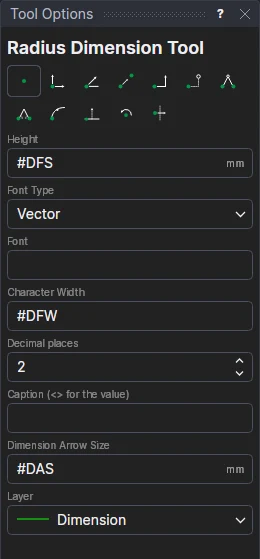
Usage
- Set the dimension's options if you need to. Each starts as the drawing's
dimension setting variable: a dimension made with an option left so keeps to the
variable, and changes when it does; change an option here for the dimension to have its own.
- Height: the height of the capital letters, an expression:
#DFS(Dimension Font Size) to begin with. - Dimension Arrow Size: an expression:
#DASto begin with (0 for no arrows). - Font Type and Font: a vector font (an .shx file, or empty for the built-in font) or a TrueType font
(an installed family, or a .ttf or .otf file),
#DFKand#DFNto begin with. TrueType fonts can also be Bold and Italic (#DFB,#DFI). - Character Width: how wide the letters are, an expression:
#DFW(1, normal) to begin with. - Decimal places: the most shown (
#DDP: 2 in millimetres, 3 in inches). Trailing zeros are left off. - Caption (<> for the value): text instead of the measurement, with
<>standing for it (for example<> TYP). Leave it empty to show the measurement. It has no variable.
- Height: the height of the capital letters, an expression:
- Choose the layer to draw the dimension on. It starts as the Dimension layer, if the drawing has one.
- Click* the centre of the arc or circle.
- Click* a point on the arc or circle. This is where the dimension line meets it.
*Depending on the chosen snap mode, several clicks may be required to define the point parametrically. Read more about Snap Modes