Set Point Tool
Use the Set Point Tool to add a point to the drawing without drawing anything through it. Points made this way are useful as references: the corner a box is drawn from, the centre of a pattern, a point other points are measured from.
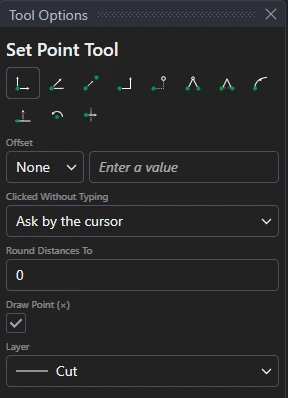
Usage
- Choose a snap mode that places the new point relative to existing ones: Ortho, Angle, Tween, Two-Point, Offset X and Y, Two Distances, Two Angles, Along an Element, Offset from a Line, Around a Centre or Mirror. (The plain Snap mode isn't offered, as it would only pick a point that already exists.)
- Fill in any values you want fixed for every point in Tool Options, such as a distance or an angle. The others follow the cursor, and are shown in a box beside it: type a value there to set it.
- Tick Draw Point (×) to put a POINT element, drawn as a small cross, on the Layer chosen at every point made. Left unticked, the points are only references.
- Tick Part marker instead to make the point one of the drawing's part markers: where the drawing goes when it is dragged from the Parts panel onto another drawing (a hand hole's centre, a flap's hinge ends). They are numbered in the order made, drawn as a ringed cross, and never exported or plotted. A drawing can have up to four.
- Click* to place the point, or press Enter after typing. A value you didn't type is asked for by the cursor, unless Clicked Without Typing in Tool Options says to use the measured value or make a variable of it.
The new point keeps its relationship to the points it was built from, so it moves when they move.
Many points at once
Select points, or elements, before choosing the tool. The point you place is then placed the same way from every selected point, and from every point of the selected elements, all in one step (one Undo takes them all away). The status bar says how many points are selected, and the points to be made are shown as you move.
- Ortho, Angle and Offset X and Y: each point is the same offset from its own selected point: placing
UP(P0,FLAP)from P0 with P1 and P2 selected makesUP(P1,FLAP)andUP(P2,FLAP)too. A distance typed or asked for by the cursor becomes one variable that every point uses; a distance snapped into line with another point stays in line with that point. - Two-Point: when both distances are measured from the same point, the same is done from each selected point.
- The other modes (Tween, Two Distances, Mirror …) place just the one point.
*Depending on the chosen snap mode, several clicks may be required to define the point parametrically. Read more about Snap Modes