Text Tool
Use the Text Tool to add text to the drawing. The text stays attached to its point, so it moves when the point moves.
Usage
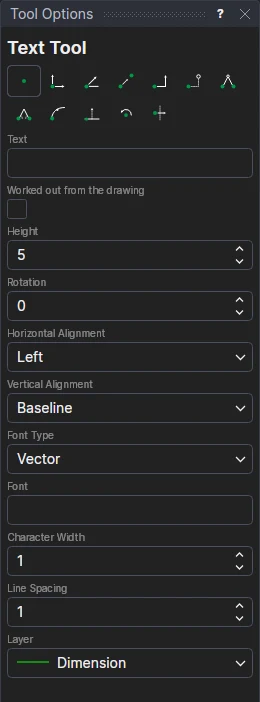
- Type the text in Tool Options. Press Enter to start a new line.
- To show something worked out from the drawing, tick Worked out from the drawing and type an expression, such
as
CONCAT("L = ",L)or a sheet field likeHOSTNOTE("Customer"): the text changes whenever the drawing does. Edit › Page › Insert Field… fills it in for you (see Drawing sheets and borders). - Set how it looks:
- Height: the height of the capital letters, in drawing units.
- Rotation: the angle of the text in degrees, anticlockwise.
- Horizontal Alignment and Vertical Alignment: which part of the text sits on the point you click. For example, Center and Middle centre the text on the point.
- Font Type: Vector for single-stroke text that can be cut or plotted, or TrueType for filled letters in an installed font.
- Font: for TrueType, start typing a font name and choose from the list. For Vector, leave it empty to use the built-in font, or give an .shx file.
- Bold and Italic (TrueType only).
- Character Width: 1 is normal; less is narrower and more is wider.
- Line Spacing: 1 is normal; 2 is double.
- Choose the layer to put the text on.
- Click* where the text goes. The text follows the cursor until you click.
With the Aligned or Fit horizontal alignment, the text runs between two points: click* where it starts, then where it ends. Aligned scales the whole text to fit; Fit only stretches its width. The two points set the angle, so there is no Rotation option.
*Depending on the chosen snap mode, several clicks may be required to define the point parametrically. Read more about Snap Modes