Transform Tool
Use the Transform Tool to move, rotate, scale or mirror part of the drawing, or to make a moved, rotated, scaled or mirrored copy of it.
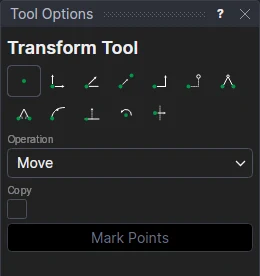
Usage
- Select* the elements to transform. Hold Alt to select points as well, or instead.
- Choose the Operation and its values. Each value can be a number or any expression.
- Move: no values; the points you mark say how far.
- Rotate: by an Angle, in degrees anticlockwise.
- Scale: by a Scale Factor: 2 doubles the size, 0.5 halves it.
- Mirror: no values; the two points you mark are on the line to mirror across, which can be at any angle. Edit › Mirror Copy (Ctrl+M) goes straight to this, copying: select what to mirror, press Ctrl+M, and mark the two points.
- Tick Copy to leave the selection where it is and transform a copy of it.
- Click Mark Points. The selection is previewed where it will go as you move the cursor.
- For Move, click the point to move from (an existing point, such as a corner of the selection), then mark† the point to move it to.
- For Rotate and Scale, mark† the centre to turn or scale about.
- For Mirror, mark† a point on the line to mirror across, then a second point on it. The line is shown as you move the cursor.
The selection is transformed when the last point is marked. Press Escape to go back to selecting (the selection is kept).
What moves
Transforms are parametric: every new position is worked out from where it came from ((P3)*ROTATE(…)), so it follows
it, and nothing is fixed in space. The points you mark are existing points, or new points defined relative to them
(in any snap mode), so a move is from one point to the other (TRANSLATE((P9)-(P2))), a mirror is across the line through two
points (MIRROR(P2,P9)), and a centre is a point of the drawing: move the points they are defined by, and the
transformation follows.
- Elements are moved in place. They keep their ids and their points; each point is redefined as its old
definition, transformed. A point at a fixed position just gets the new position (
[10,0]moved by[5,5]becomes[15,5], or[10,0]+[MOVX1,MOVY1]when the move is in variables); a point defined from another moved point keeps its definition, turned with it where needed (RIGHT(P4,W)rotated becomesPOLAR(P4,ANG1,W)), so its sizes still work; anything else is wrapped,(…)*ROTATE(…). No new points are made and nothing is copied. - Elements that share a point stretch. An element that isn't selected but is drawn on a moved point has that end moved with it, and its other end stays: move one side of a box and the two sides on it stretch.
- What isn't moved stays put. A point that isn't moved but is defined from one that is (
P8=P4+[0,10]) is redefined from where that point was,(P4-[5,5])+[0,10]or(P4*INVERSE(…))+[0,10], so it doesn't move. - What is on a moved element comes with it: a point on it (
ONELEMENT(@3,0.5)), a dimension on its points. - Points you selected on their own move the same way, in place.
Arcs keep the right direction after a mirror, and text turns with the drawing.
Some things can't be moved in place, and are then moved as copies, the moved elements on new points defined from
theirs. That happens when the move includes the drawing's origin, P0 (a part or vector image placed on the origin
or the drawing's corners, say); when a piece, offset or fill of a moved element isn't moved with it; and when a
moved point is defined on an element that isn't moved. An original that something is worked out from (a point on it,
@5.P3 on a part, a piece of it) is kept, with its points, on the Construction layer, so that goes on following
it; one nothing is worked out from is deleted. Either way, only the moved element is seen: an element on a hidden
layer isn't drawn, a part, vector image or image included, and with the Construction layer shown, a part or vector
image kept there is drawn as construction lines (an image as its outline), not as itself. A piece of a split or trimmed curve is moved with a copy of
its curve (on the Construction layer), so it is still the same piece of the same shape.
A copy is drawn the same way, but the originals stay as they are, so the copy follows the original when it is changed later.
*Select elements as with the Select Tool: click, drag a rectangle, and hold Shift or Ctrl to add or remove. Read more about selecting
†Depending on the chosen snap mode, several clicks may be required to define the point parametrically. Read more about Snap Modes