Vector Import Tool
Use the Vector Import Tool to place a drawing from another program, such as a DXF logo or a PDF of artwork, in the drawing as a picture. Like a raster image, it is pinned to four corner points, so it moves, turns and stretches when they move, and it is saved inside the drawing.
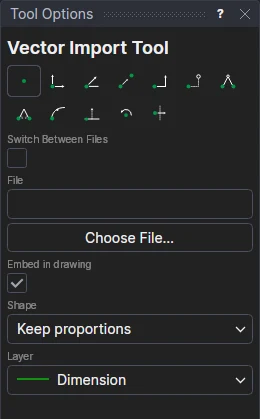
Usage
- Click Choose File… and pick a DXF, DWG, CF2, DDES3, PDF, EPS, PostScript, Illustrator, SVG, HP-GL or G-code file, or
type the file's path (or a web address,
https://…) in File. - Choose its shape:
- Keep proportions: click* the bottom left corner, then the bottom right corner. The height comes from the drawing's own proportions.
- Rectangle: click* the bottom left and bottom right corners, then a point level with the top.
- Free: click* each corner in turn (bottom left, bottom right, top right, top left).
- Choose the layer for its outline.
- Leave Embed in drawing ticked to keep the picture inside the drawing, or clear it to link it to its file or web address: the drawing then reads it whenever it is opened, so changing the file changes the drawing. See Linked files and web addresses.
The drawing is shown as you place it. It is read just as File › Import › Import… reads it (see File Formats), and anything that couldn't be read is listed in the messages.
Switching between files
To show one of several drawings depending on a variable (a different insert for each style of box, say), tick Switch Between Files:
In Switch On (a variable or expression), type the variable (or any expression) that picks the file:
STYLE.In Cases (one per line: value: file), list the files, a line each: the value the file is shown for, a colon, then the file. Each Choose File… adds a line, numbered after the others. A
DEFAULT:line is shown for any other value.1: C:\Inserts\tab.dxf 2: C:\Inserts\slot.dxf DEFAULT: C:\Inserts\plain.dxfPlace it as above. The one shown as you place it is the one the variable picks now, and its proportions set the corners for Keep proportions; the others are fitted to the same corners.
They are placed together as one SWITCHPART on the same points. Change the variable and the other file's drawing is shown in its place; only the one shown is exported.
A picture, not part of the drawing
- Its elements keep their own layers and line widths, and are drawn exactly (lines stay lines, arcs become ellipses).
- Its points are its own: none of them is drawn, and nothing snaps to them. Select it by its outline, and move it with the selection box or by its corners.
- Exports write its elements on their own layers.
For a ParametrIQ drawing (.piq), use the Part Import Tool, which keeps it full size and lets it take this drawing's sizes.
*Depending on the chosen snap mode, several clicks may be required to define the point parametrically. Read more about Snap Modes
See also: VECTORIMAGE, SWITCHPART, IMPORT, Barcode Tool.