Weeding Tool
Use the Weeding Tool to make a vinyl design easy to weed: a weed border round it, and weed lines across the waste inside the border. Choose which with Kind; the border's margin (WEEDM1) is shared by both, so the lines reach the border.
Which kind for which trade
| Kind | The trade's own tool | A drawing for |
|---|---|---|
| Weed border | Weed Border Tool | vinyl cutting, sign making |
| Weed lines | Weed Lines Tool | vinyl cutting, sign making |
A drawing for one industry starts with its trade's kind, and the toolbar button has that kind's name; a General drawing (or Show All Tools) shows the button as the Weeding tool. The kind you choose stays chosen for that drawing until you choose another. The Tool menu still lists each trade's tool by its own name. Each kind makes what its trade's tool always has made: the same lines, layers and variables.
Weed Border Tool
Use the Weed Border Tool to put a weed border (a weed box) round a vinyl design: a cut a margin out from the lettering or the logo, so the waste round it peels away in one piece when it is weeded, and the application tape has a straight edge to line up by.
Usage
- Draw the design (lettering made with the Outline Text Tool, say), then select the design: click it, drag a box round it, or hold Shift to add to what is selected.
- Choose the Border: Rectangle (a box round the design's extent) or Outline round the shapes (a cut that follows the shapes a margin out, joined where they come close: less vinyl to weed round a shaped logo).
- Fill in the Weed border margin: a number or any expression.
- Click Apply.
The border goes on the Weed layer, added to the drawing if it hasn't one; it is cut with the design.
A border that follows the design
The rectangle's corners are points on the design's extent (EXTENTMIN(@3,@4)-[WEEDM1,WEEDM1], see
EXTENTMIN); the outline is a block on
CONTOUR. Change the lettering, move it, or change the margin, and the border follows.
The margin is kept in a variable, WEEDM1, which the next border and the Weed Lines Tool use too: change it once for all of them.
See also: Weed Lines Tool, Contour Cut Tool, Vinyl cutting.
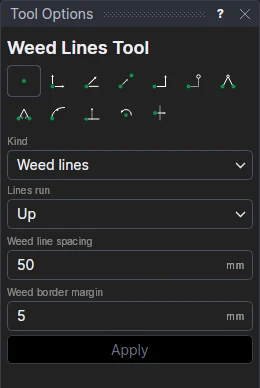
Weed Lines Tool
Use the Weed Lines Tool to cut weed lines across the waste of a vinyl design: cuts that split the waste inside the weed border into strips (or squares), so a large design weeds a strip at a time, and the waste doesn't pull the letters up with it. Each line stops at the letters and runs on between them and through their counters.
Usage
- Select the design: click it, drag a box round it, or hold Shift to add to what is selected.
- Choose which way the Lines run: Up, Across or Both ways.
- Fill in the Weed line spacing (how far apart the lines are) and the Weed border margin (how far out from the design the lines reach: the border's margin, WEEDM1, if the drawing has a weed border).
- Click Apply.
The lines go on the Weed layer, with the weed border.
Lines that follow the design
The lines are a block on the design (WEEDLINES): they are worked out again when the design changes. The spacing is kept in a variable, WEEDS1, shared by the next weed lines; the margin is WEEDM1, shared with the Weed Border Tool.
See also: Weed Border Tool, Vinyl cutting.