ParametrIQ CAD
Welcome to ParametrIQ CAD
ParametrIQ CAD is a parametric CAD program. A drawing is built from points and variables, and every element
(line, arc, text, dimension …) is drawn on points, never at fixed positions. Points are defined from other points
and variables: P5=UP(P4,FLAP) is always FLAP above P4. Change a variable, such as the box's length L, and
everything defined from it moves to suit.
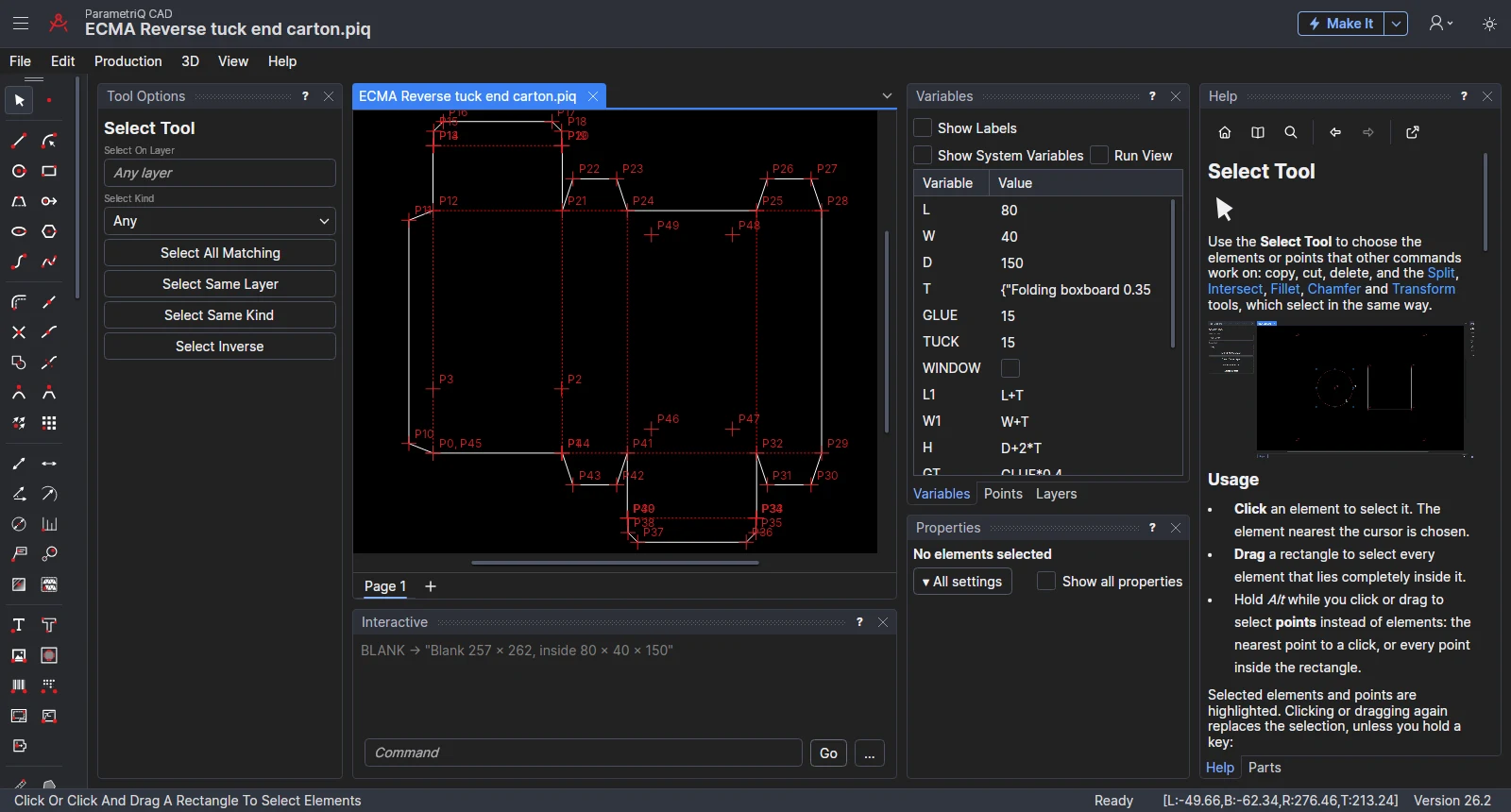
The window
- Toolbar (left): the tools, for drawing, editing, dimensioning and measuring.
- Tool Options: the chosen tool's settings, and its snap modes: how a click becomes a point.
- Drawings: each open drawing in its own tab, with a tab for each of its pages under it. The status bar below says what to click next.
- Interactive: type commands and expressions, in the same language the drawing is saved in.
- Variables, Points and Layers: the drawing's values, points and layers, to see and change.
- Properties: the settings of the selected elements.
- Parts: a library of parts (glue flaps, locks, hang holes …) to drag onto the drawing.
- Help: these pages, for the tool in use. F1, or a panel's or dialog's ?, shows the help on what you are working on, and View › Command Palette… (Ctrl+K) finds any command, tool, setting or help page by typing a word of its name (see Command Palette and Help Where You Are).
View › Panels opens or closes each panel, View › Layout saves, manages or resets their arrangement, and View › UI Density makes the window more compact or more spacious. The same menu turns the drawing's Axes, Grid, Rulers and Points on and off, and Zoom All, Zoom In and Zoom Out fit the whole drawing in the window or zoom a step (as the ZOOM command does). Show Fixed Points selects and lists the points that don't follow the drawing's variables (see Points).
Edit › Preferences… (Ctrl+,) holds your own settings: the units new drawings start in, the language, the backups kept, how often recovery copies are made, and the drawing index (see Preferences). File › Drawing Properties… shows what the drawing shown is and edits its notes (see Drawing Properties). Edit › Links… lists the pictures, parts and 3D models the drawing links to their files or web addresses rather than keeps, to update or embed them (see Linked files and web addresses).
Getting started
- Install and activate the program: see Installation and Activation.
- Choose what to do on the start page, which ParametrIQ shows when it opens (and File › Home shows at any time): the first time, choose the industry you draw for; then start from a library design, open a recent drawing, or start a new blank drawing. Its Simple mode switch shows just the tools and settings most people need (see Simple mode and the start page).
- Start a drawing with File › New, choosing the industry you draw for and its
material (or None). A new drawing has the corners of a box, P0 to P3,
L(500) across andW(400) up, in millimetres, or in inches if you choose them in Edit › Preferences (see Preferences). - Draw with a tool: choose the Line Segment Tool, and click from point to point. Choose a snap mode to make new points relative to existing ones as you go.
- Change a size: set
Lin the Variables panel, or typeL=600in the Interactive window, and watch the drawing follow. - Save with File › Save (a .piq file; each save keeps a backup of the version before), or export it to another format with File › Export › Export…, choosing the format from the file types in its dialog (DXF, CF2, PDF, Illustrator, PNG …). File › Send by Email sends the drawing or an export to someone instead (see Emailing exports).
Reference
- Tools: every tool, how to use it.
- Interactive: every command.
- Expressions: every function and operator.
- File Formats: what is read and written.
- Extensions: post-processors, design rules, templates and reports in JavaScript.
- PiQ Lang Primer: the language, from the start.