Scenes: Shelf, Pallet and Wall
A 3D page can show its model in a scene: the folded pack faced up on a retail shelf, shippers stacked on a pallet, or a sign or frame hung on a wall. The scene is set once for the drawing, with a SCENE statement or 3D › Display › Display Scene, and every 3D page of the drawing shows it, with everything that shows a 3D page: the proof images and video (in both qualities), glTF, USDZ, COLLADA and 3D PDF exports, and the web viewer. The slider still makes the model: on a shelf or a pallet every copy folds up together.
SCENE "SHELF",ROWS=3,COLS=4,DEEP=2
SCENE "PALLET",PALLET="EUR",PATTERN="BEST"
SCENE "WALL",HANG=1600,HALO="#ffd9a0"
SCENE "NONE"
Every setting is an expression, so a variable keeps the scene following the drawing (COLS=FACINGS). Sizes are in
the drawing's units. Without a setting, the scene's default is used.
Choosing a scene
3D › Display › Display Scene lists None, Shelf, Pallet Load and Wall. Choosing one writes SCENE "kind"
(one step you can undo) with the scene's defaults; change its settings in the Scene panel on the 3D
page, or by editing the statement (in the drawing's text or the command line). Choosing the scene the drawing already
has keeps its settings. None takes the scene away. A 3D page whose MODE names its stages
leaves the scene out unless the list has SCENE.
The Scene panel
Click Scene on the 3D view's toolbar (beside Variables) to show the panel beside the view. With the Variables panel shown too, the two share one column, Variables above Scene: drag the bar between them to give either more room. Its first row, Scene, chooses the scene (None, Shelf, Pallet Load or Wall, as the 3D menu does); under it are the scene's settings, each by its name and key, with the value the drawing gives it or, if it gives none, the scene's default:
| The setting | Is shown as |
|---|---|
A count or an angle (ROWS, COLS, DEEP, TURN, BRIGHT) |
a slider and a box |
A size with a default (GAP, MAXH, OVERHANG, PHOTOW, OFF) |
a box, in the drawing's units |
A size the scene works out (CLEAR, LAYERS, PALLETL, WALLW, HANG …) |
a text box, empty while the scene works it out |
PRICE |
a tick |
A choice (PALLET, PATTERN, SHIPPER, UP, FRONT) |
a list |
Text (LOOK, COLOUR, PHOTO, HALO) |
a text box |
Each change is written into the drawing's SCENE statement as one step to undo, the other settings kept as they
are, and the 3D is made again in the background, as the Variables panel does: the view and
the camera stay where they are, and a slider tries its values as you drag it. Empty a text box, tick Price strip
again, or choose (automatic) to take the setting out of the statement and leave it to the scene.
A setting written as a formula (COLS=FACINGS) is shown as its formula in a text box, and what you type there is
kept as a formula, so the scene stays parametric; a size the scene works out also takes a formula. A formula that
can't be read is refused and said in the message bar. Choosing another scene in the first row starts it from its
defaults, as the 3D menu does.
Standing the model up
The model is made (folded, extruded …) and measured, then stood in the scene. A folded carton is drawn flat with its
first panel on the floor, so by default its Y axis (up the drawing) becomes up and its first panel's outside faces
the front; a solid made by extruding stands as it is made (its Z up). Three settings change
that, for the shelf and the pallet:
| Key | Meaning |
|---|---|
UP |
The model's axis that points up: "X", "Y", "Z", "-X", "-Y" or "-Z". |
FRONT |
The model's axis that faces the front (towards you). |
TURN |
Then turned this many degrees about the vertical. |
A tray folded up from its base, for example, stands with UP="Z",FRONT="-Y".
Retail shelf
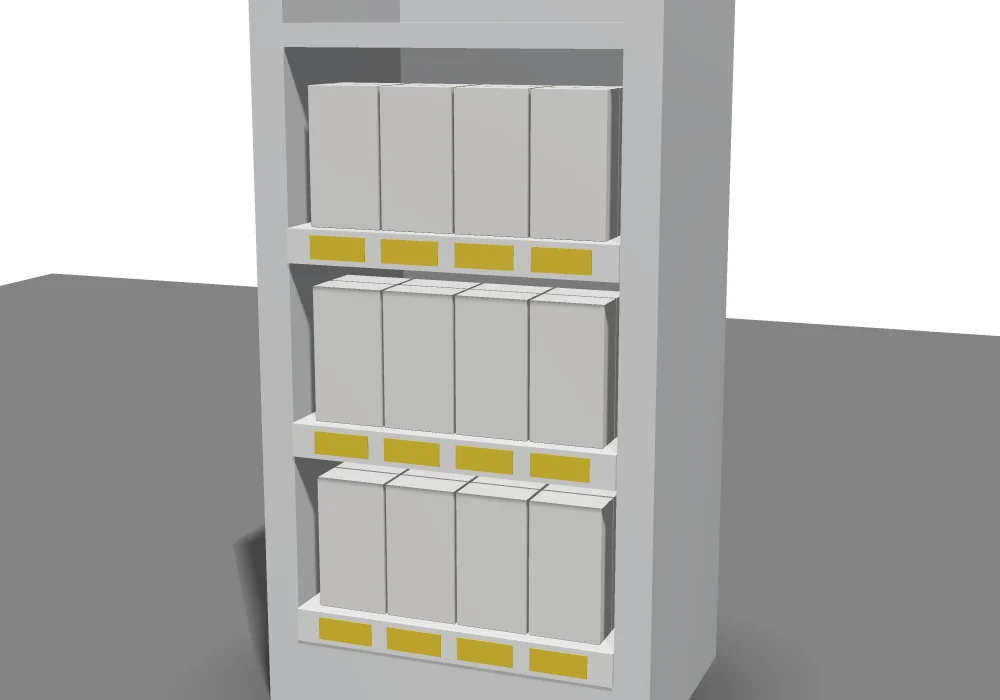
SCENE "SHELF": a shelving bay (a plinth with its base deck, uprights each side, a back and shelves) with the pack
faced up on it, row by row.
| Key | Meaning |
|---|---|
ROWS |
Shelves with packs on them, the base deck the first (3). |
COLS |
Facings across each shelf (4). |
DEEP |
Packs behind each facing (2). |
GAP |
The gap between packs (3 mm). |
CLEAR |
The room over the packs to the shelf above (40 mm, or a tenth of the pack's height if more). |
PRICE |
A price strip along each shelf's front with a ticket under each facing: on unless PRICE=0 (or "NO"). |
LOOK |
The shelves' material (appearance; white powder-coated steel without it). |
The bay is sized to fit: as wide as the facings, as deep as the packs behind them, a shelf above each row. The 3D page's messages say how many packs it shows.
Pallet load
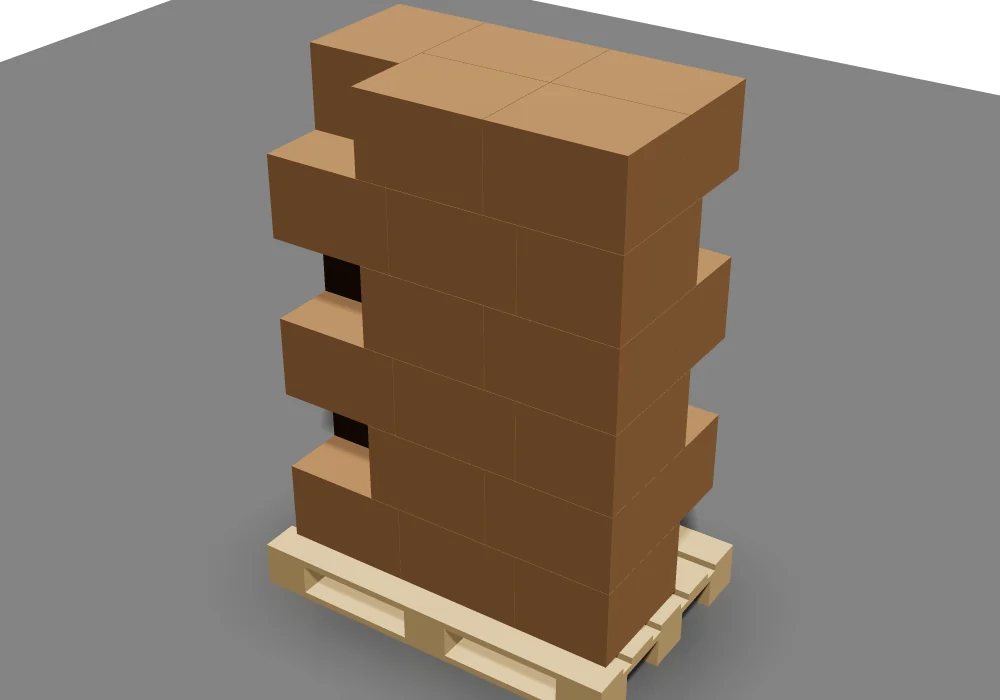
SCENE "PALLET": shippers stacked on a pallet, layer on layer, by a pattern.
| Key | Meaning |
|---|---|
PALLET |
"EUR" (EPAL 1, 1200 × 800, the default), "EUR2" or "UK" (1200 × 1000), "EUR3" (1000 × 1200), "EUR6" (800 × 600), "GMA" (48 × 40 in, on stringers), "AU" (1165 × 1165), "ISO" (1100 × 1100), or "CUSTOM". |
PALLETL, PALLETW, PALLETH |
The pallet's length, width and height (a custom pallet's, or a standard one's changed). |
PATTERN |
"BEST" (the default): whichever puts more cases on a layer, columns if they put as many. "COLUMN": every case the same way, stacked straight up. "INTERLOCK": two blocks of cases at right angles, every other layer turned half round so the joints cross. |
LAYERS |
How many layers. Without it, as many as keep the load, pallet included, no higher than MAXH. |
MAXH |
The highest the load may be, with the pallet (1800 mm). |
OVERHANG |
How far cases may stand past each edge of the deck (0). |
SHIPPER |
Without it, the shippers are the folded pack itself, its footprint and height measured from the made model (the overall size the Cape Pack export reports). "CASE": plain corrugated cases the size the drawing's pack sizes give (its L, W and D, as the TOPS Pro export takes them; inside sizes made outside by adding twice T). |
LOOK |
The pallet's material (pine without it). |
The messages say the plan: the cases on a layer, the layers, the total, the pattern and the load's height. The pattern is worked out by the same code whichever way the case's size comes, and Export to Cape Pack on a 3D page with a pallet scene writes the pack on its own (not the pallet) and adds the 3D page's plan to its messages, so you can compare it with Cape Pack's.
Wall: signs and frames
SCENE "WALL": the drawing is the wall's face (its x across, its y up) and the model stands out from it: a routed or
built-up sign, letters on stand-offs, a frame with its glass (Wrapping and sweeping).
| Key | Meaning |
|---|---|
COLOUR |
The wall's colour ("#ebe7df", a warm white, without it). |
PHOTO |
A room photo as the wall (a file, web address or data URI): the sign shown in its place. |
PHOTOW |
How wide the photo is, in the drawing's units (3000 mm): the photo's scale. Its height follows its shape. |
WALLW, WALLH |
A plain wall's width and height (2.5 times the model's width, at least 2400 mm, by 2600 mm). |
CX |
How far the model's middle is from the wall's left (the middle without it). |
HANG |
How high the model's middle is above the floor (1500 mm; with a photo, its middle). |
OFF |
How far the model's back stands off the wall (0): stand-offs. |
HALO |
LED halo lighting: a colour ("#ffd9a0"), or 1 for warm white. The wall glows round the model's outline, as halo-lit letters light the wall behind them. |
GLOW |
How far the glow spreads (40 mm, and more the further the model stands off). |
BRIGHT |
How bright the halo is (1). |
The photo and the halo are made into the wall's own image, so the proofs and the 3D exports show them as the 3D page does (the web viewer shows the wall in its colour, without the photo or the halo). A frame's glass reflects the studio's soft box in a Photo quality proof, as glass does on any 3D page.
Example
SCENE "PALLET",PALLET="GMA",PATTERN="INTERLOCK",MAXH=60*25.4
The drawing's shipper on a GMA pallet, interlocked, as many layers as stay under 60 inches with the pallet.
See also
- SCENE: the statement.
- Making drawings 3D: the 3D page's modes.
- Proofs: proof images and video.
- Pallet software: TOPS Pro and Cape Pack.