Intersect Tool
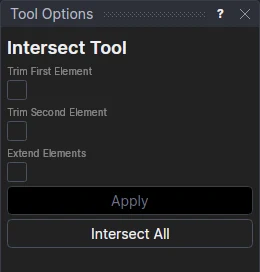
Use the Intersect Tool to add points where elements cross and split the elements there, or to trim two elements back to where they cross.
Usage
- Select* two or more elements.
- Click Apply.
A point is added at every place where two of the selected elements cross (lines, arcs, circles, ellipses, Béziers, NURBS curves, cubic, Catmull-Rom, Hermite and B-splines, polylines and splines, in any combination), and each element is split into pieces that meet at those points. A circle or ellipse becomes arcs (cut at its own start point too). Infinite lines get the points but stay whole. The messages say how many points were made and how many elements were split. Where a point is already there (an element's end, or an earlier intersection), no second one is added. The points and the splits are undone in one step.
Points, text, dimensions and images are passed over.
Intersect All
Click Intersect All to do this for the whole page at once, whatever is selected: every line, arc, circle, ellipse, curve and polyline that can be seen is crossed with every other, a point is added wherever two cross, and every one is split into pieces there. Dimensions, text, images, points and parts are passed over, and so are elements that are hidden, on a hidden layer, or on the Construction layer (where the elements already split are kept), so clicking it again only crosses the pieces. It is undone in one step.
Every point follows the elements. Where lines, arcs and circles cross, it is worked out from their points, not from the elements, so it doesn't depend on the elements being kept:
| Crossing | Point |
|---|---|
| Two line segments | LERP(…) of their ends |
| A line and an arc or circle | LINECIRCLE(P1,P2,P5,DISTANCE(P5,P6),0): the first or second crossing from the line's start |
| Two arcs or circles | TRIANGULATE from the two centres and radii, on one side or the other |
Where anything else crosses, the point is the crossing itself (CROSSING(@3,@4,0), the first along the first
element).
What happens to the original. A line, arc or circle that nothing else refers to is deleted: its pieces are new lines and arcs on its own points and the new points, and those points are worked out from the original's points, so nothing needs it any more. Any other element (a curve, a polyline, or a line, arc or circle that a point or another element is defined on) is kept under its own id on the Construction layer, and its pieces are defined on it. Edit > Tidy Drawing later takes out any construction that is no longer needed.
Trimming
Tick Trim First Element, Trim Second Element or both to cut the elements back to where they cross. The first element is the one you selected first.
- Select exactly two elements.
- Tick the elements to trim.
- Click Apply.
- Click on the side of the crossing to cut off.
Your click picks the crossing nearest it, and for each element ticked the side of that crossing it is on: that side is removed, so the element now ends at the crossing's point. Clicking in one of the four corners an X of two lines makes cuts off the two arms around that corner. Right-click instead to cancel.
What is kept is that choice, not where you clicked: which crossing (counted along the first element) and which end of
each element is cut off, written INTERSECT @3,@4,END,START,0. So the trim stays the same when the elements move.
An element that isn't ticked is split at the crossings instead. Circles, ellipses, closed polylines and infinite lines are not trimmed, nor is an element that crosses the other only at its ends: those are split (or, for infinite lines, left whole) as if not ticked. Two line segments trimmed this way end at the parametric crossing point, so they stay joined when they move.
Extending
Tick Extend Elements to cross two elements where they would meet if they were longer: line segments as their whole
lines, arcs as their whole circles. Select exactly two elements, click Apply, then click near the crossing you want.
An element that stops short of it is extended to it from its nearer end (the extension follows the element, defined on
it); one that reaches it is trimmed or split there as usual. Only line segments and arcs can be extended. The command is
written with TRUE at the end: INTERSECT @3,@4,NONE,NONE,0,TRUE.
*Select elements as with the Select Tool: click, drag a rectangle, and hold Shift or Ctrl to add or remove. Read more about selecting