Lead Tool
Use the Lead Tool to choose where a closed cut starts and ends, and to start and end it off the part, in the waste: a lead-in from the waste to the cut, and a lead-out from it back into the waste. The beam (or plasma torch, or water jet) pierces the sheet at the start of the lead-in, so the pierce mark, and the small blemish where a cut ends, are not on the part's edge.
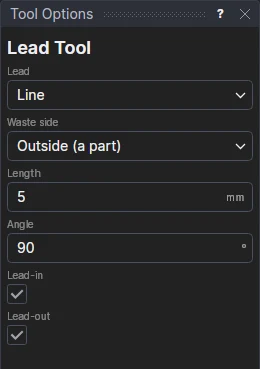
Usage
- Choose the Lead: a straight Line, or an Arc that meets the cut tangentially (the smoothest start).
- Choose the Waste Side: Outside (a part) for a part's outline, Inside (a hole) for a hole or cut-out.
- Fill in the Length (an arc's radius) and the Angle: a line's angle to the cut (90: square to it; less: it comes in at a slant, in the direction of cutting), or how far an arc sweeps round, in degrees.
- Tick Lead-In and Lead-Out, or only one of them.
- Click a closed cut (an outline, a circle, a closed polyline …) where it should start and end. The leads are shown as you move.
One path for the machine
Machine output cuts each element of the drawing as one path, from its start: an open path from its first end, a closed one from the middle of its longest side. So the leads and the cut are made into one path (a SPLINE): the lead-in, the whole cut round from the point clicked back to it again (a PIECE of the cut), and the lead-out. The G-code and HPGL exports pierce at the lead-in's start and turn the beam off at the lead-out's end, and a DXF or SVG gives the laser's own software the same path, starting where you chose. (To save travel, G-code may run a path the other way round, from the lead-out: that starts in the waste too.) The cut itself is kept on the Construction layer, and the path takes its layer and its settings.
(G-code's own Leads export setting adds leads to every cut as it is written; the Lead Tool's are part of the drawing, where you put them.)
Leads that follow the drawing
The point clicked stays a fraction of the way along the cut, and the leads are worked out from it and from the cut's direction there. The length and angle are kept in new variables (LEAD1, LEADA1), which the next leads share (the boxes then show them): change them and every lead changes. Type a number to start a new variable.