Panel Tool
Use the Panel Tool to draw a panel (a flap) on a line: three new lines, a side from each end of the line and a far edge across, so the line becomes the fold it hangs from. The sides can lean, the far corners can be rounded, and the line can be put on the Crease layer.
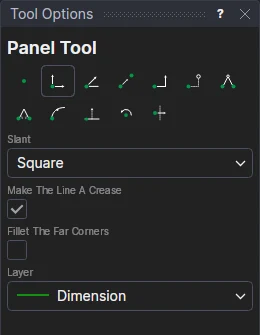
Usage
- Choose how the sides Slant, and by how much (Slant Angle, in degrees):
- Square: both sides square to the line, a rectangle.
- Towards each other: both lean in, so the panel is narrower at the far edge (a tuck or dust flap).
- Away from each other: both lean out, wider at the far edge.
- With each other: both lean the same way, towards the line's end, a parallelogram. A negative angle leans them towards its start.
- Start side only or End side only: one side leans in (a negative angle leans it out), the other is square.
- Leave Make The Line A Crease ticked to put the line on the Crease layer (if the drawing has one).
- Tick Fillet The Far Corners, and fill in the Fillet Radius, to round the two far corners.
- Choose the layer to draw on.
- Click the line the panel folds from: the line segment under the pointer is highlighted as you move, as with the Select tool (no snapping yet). It must be a line segment. If it is already the only thing selected, this step is skipped.
- Mark* a point away from the line, on the side the panel goes, for how far it reaches. The panel is shown as you move.
Press Escape before marking the point to let the line go and pick another.
It follows the drawing
The panel's two far corners are new points worked out from the line's ends and the point you marked: the far edge is as far from the line as the point (only how far counts, not where along the line it is). Move the point, or the line's ends, and the panel follows. Nothing is fixed in space.
- The slant angle is kept in a new variable (PANA1, PANA2 …): change it and the sides lean more or less.
- The far corners are rounded with the Fillet Tool's fillets, on the lines' points. Their radius is a new variable (FIL1 …), and each fillet's own radius variable is set to it, so changing that one variable changes both corners.
When it can't
A message explains why no panel was drawn: the point is on the line itself, the sides lean so far they would cross before the far edge. Clicking anything but a line segment picks nothing.
*Depending on the chosen snap mode, several clicks may be required to define the point parametrically. Read more about Snap Modes