Split Tool
Use the Split Tool to cut elements into pieces: equally, at fractions of their length, or at set distances along them. New points are added where the cuts are, ready to draw from, and the pieces join at them.
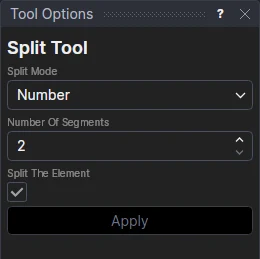
Usage
- Select* the elements to split.
- Choose the Split Mode:
- Number: into equal pieces. Set the Number Of Segments (2 to 10): 2 cuts it in half, 3 in thirds, and so on.
- Fractions: at fractions of its length. Set the Number Of Segments, then fill in each fraction (such as 1/3, 0.25 or 2/5).
- Distances: at distances along it from its start. Set the Number Of Segments, then fill in each distance.
- Leave Split The Element ticked to cut the element into pieces. Clear it to add the points only, leaving the element whole.
- Click Apply. Every selected element is split in one step, so a single undo puts them all back.
Each fraction or distance can be any expression; start it with $ to measure from the end instead
of the start ($10 is 10 from the end). Positions are measured along the element: half way round an arc, or half
the length of a curve, not half way along the straight line between its ends.
What you get
| Element | Pieces |
|---|---|
| Line | Lines |
| Arc | Arcs, together making the same arc |
| Bulge arc | Pieces of the arc |
| Circle | Arcs, starting from the circle's own start point (so 4 segments are four quarter circles) |
| Ellipse, elliptical arc | Pieces of the ellipse or arc |
| Bézier, NURBS curve, cubic spline, Catmull-Rom, Hermite or B-spline | Pieces of the curve, the same shape |
| Polyline, spline | Pieces of the polyline or spline; a cut that falls on a corner uses the corner's own point |
| Piece (of a split, trimmed or filleted curve) | Pieces of the same curve |
Every piece keeps the element's layer, line width and other settings.
What happens to the element
A line, arc or circle cut into pieces is replaced by them: its pieces are lines and arcs between its own points and the new ones, and the new points are worked out from its points, so it is deleted (unless something else refers to it, such as a point defined on it: then it is kept, as below). Change one of its points and the pieces change with it.
Any other curve is kept under its own id, moved to the Construction layer, and its pieces are pieces of it
(PIECE), which keep its exact shape. Change the original (move one of its points) and its pieces change with it.
The Construction layer starts hidden, and is never plotted or exported. Tick it in the Layers panel to see the originals, and to pick one: the Properties panel's Used by shows what is worked out from it. Edit > Tidy Drawing takes out any that are no longer needed, and deleting one that is still needed asks first (see Points).
Points that follow
On a line, an arc or a circle, the new points are worked out from the element's own points, so they stay
in the same place along it when it changes: a point half way along a line stays half way along when the line is
stretched. On a polyline or spline, a point falling on a straight segment follows that segment. A point on any
other curve is defined on the curve itself, at the same fraction of its length or the same distance along it
(ONELEMENT(@5,1/3), ALONGELEMENT(@5,10)). No point is fixed in space.
Between two points
Hold Alt and select two points instead of an element to add points on the straight line between them.
*Select elements as with the Select Tool: click, drag a rectangle, and hold Shift or Ctrl to add or remove. Read more about selecting