Variables
A variable is a named value: a number, a size, an angle, a piece of text, TRUE or FALSE. Points, elements and
other variables are defined from variables, so change one and everything defined from it follows: that is how a
ParametrIQ drawing is resized. FLAP=D/2 stays half the depth however deep the box becomes.
The Variables panel
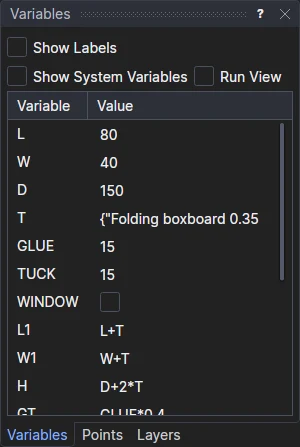
The Variables panel lists the drawing's variables, with the Variable's name and its Value:
- Double-click a value (or press F2) to change it. Type a number or any expression, such as
W/4orMAX(L,W)/2, and press Enter to apply it, or Esc to throw it away. A value that would break the drawing (an arc whose ends would be the same point, a variable defined from itself) is refused, and the old one is kept. - A TRUE or FALSE value is a check box: tick or clear it.
- A value with a fixed set of choices, such as the current layer or the units, is a list to pick from.
- Tick Show Labels for a third column, Label: what each variable is for. Double-click it to change it.
- Tick Show System Variables to list the system variables too (those whose names start with
#). - Tick Run View to show the variables as Run Parametric asks for them, and change them the
same way, each straight away:
- a choice (a list or dictionary written out and indexed by a fixed key, such as
GRADE={"Light","Standard","Heavy"}[1]) is a list of its items to pick from; - a variable with a label is changed by its type: a number or text typed (Enter applies it, Esc puts it back), or TRUE or FALSE ticked. A number typed replaces a formula with that number;
- any other variable shows what it works out to now, and isn't changed here (clear Run View to change how it is written).
- a choice (a list or dictionary written out and indexed by a fixed key, such as
Open the panel from View › Panels › Variables if it is closed.
Making variables
- Type an assignment in the Interactive window:
FLAP=25,TUCK=D/2,"Tuck flap". See Assignment. - Name a value when you click: when a tool places a point with a snap mode, a distance or angle
typed by the cursor becomes a new variable (DIST1, ANG1 …, or a name of your own:
FLAP=25), so the new point is defined by a variable you can change later. A click without typing does the same, unless Clicked Without Typing in Tool Options says otherwise. The Offset, Transform, Measure and Area tools and the selection box keep their amounts as variables in the same way.
A name is letters, digits and _, starting with a letter or _; a system variable's starts with # (#PI). Names aren't
case sensitive (flap is FLAP), and they mustn't be one of the language's own words (X, Y, SIN, LEFT …).
RENAME renames a variable everywhere it is used, and LABEL sets its label.
The drawing's size
Every drawing starts with three ordinary variables for the box it is drawn round. They are yours like any other variable: listed in the panel, changed, asked for by Run Parametric, and taken by imported drawings with the same names.
| Variable | Label | Starts as | What it is |
|---|---|---|---|
L |
Length | 500 | The box's length: P1 is RIGHT(P0,L). |
W |
Width | 400 | The box's width: P2 is UP(P1,W). |
D |
Depth | 300 | The box's depth. |
System variables
Every drawing has these too, their names starting with #. The dimension settings
are values you are expected to change; the rest are settings, mostly changed from the menus.
| Variable | Label | Starts as | What it is |
|---|---|---|---|
#O |
Origin | [0,0] | Where P0 is. |
#U |
Units | the default units | MILLIMETERS or INCHES: the units the drawing was started in. |
#PI |
180 Degrees | 3.14159… | π: half a turn in radians. |
#TAU |
360 Degrees | 6.28318… | 2π: a whole turn in radians. |
#CL |
Current Layer | Cut | The layer new elements go on. |
#CP |
Current Point | P0 | The point a command uses when it is given none. |
#DA |
Draw Axes | FALSE | Draws the X and Y axes (View › Axes). |
#DG |
Draw Grid | FALSE | Draws a grid (View › Grid). |
#GS |
Grid Spacing | 100 | How far apart the grid's lines are. |
#SP |
Show All Points | TRUE | Draws every point, not only those of the selection. View › Points turns it on and off. |
#ZA |
Zoom After Each Command | FALSE | Zooms to the whole drawing after each command typed. |
#SR |
Show Rulers | FALSE | Rulers along the top and left of the drawing, in its units. See ZOOM. |
#DL |
Draw Lines | FALSE | Not used yet. |
#DFS |
Dimension Font Size | 10 | Dimension text height. |
#DD |
Dimension Distance | 10 | How far out a dimension line is. |
#DAS |
Dimension Arrow Size | 10 | Dimension arrow size. |
#DGP |
Dimension Gap | 1 mm, 0.04" | Gap round extension lines and dimension text. |
#DEX |
Dimension Extension | 2 mm, 0.08" | How far extension lines run past the dimension line. |
#DDP |
Dimension Decimal Places | 2 in mm, 3 in inches | Most decimal places shown. |
#DFK |
Dimension Font Kind | "VECTOR" |
"VECTOR" or "TRUETYPE". |
#DFN |
Dimension Font Name | "" |
A font file or family (empty: the built-in font). |
#DFB, #DFI |
Dimension Font Bold, Italic | FALSE | Bold or italic dimension text (TrueType). |
#DFW |
Dimension Font Width | 1 | How wide dimension text's letters are. |
#RVM |
Click Without Typing | "ASK" |
What a click gives a snap mode's value not typed: "ASK" (by the cursor), "MEASURED" (the number) or "VARIABLE" (a new variable of it). See Snap Modes. |
#RVR |
Round Measured Distances To | 0 | Distances the cursor measures rounded to a multiple of this (0: not rounded). |
#RVA |
Round Measured Angles To | 0 | Angles the cursor measures rounded to a multiple of this, in degrees (0: not rounded). |
A dimension without a setting of its own follows these, so changing #DFS changes the text of every such dimension
at once.
Parts
A drawing imported as a part keeps its own variables, but each with the same name as one of this
drawing's takes this drawing's value: a box part drawn with L, W and D takes this drawing's sizes.
See also: Points, Expressions, Assignment.